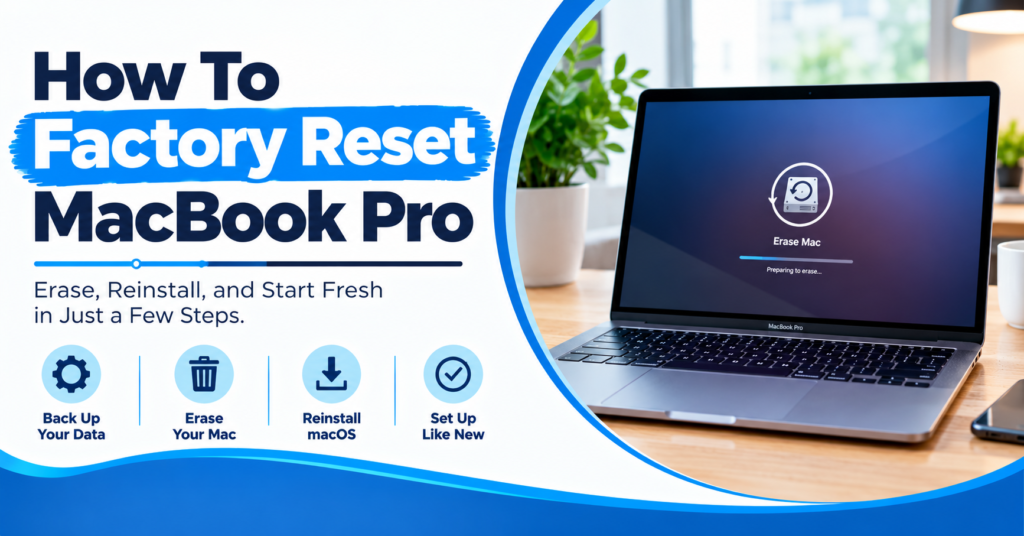
Have you ever wanted to sell your MacBook Pro? You might need to erase personal files before handing it over. Learning how to factory reset a MacBook Pro helps you prepare safely. A reset removes your personal data, apps, and settings. But you must back up important files first.
The correct steps depend on your Mac model. Newer Macs offer a simpler reset option. Older models need macOS Recovery instead. This guide explains both methods in simple steps. You’ll also learn when professional laptop repair makes sense.
What To Know Before Resetting Your MacBook Pro
A factory reset removes your personal information from the Mac. You should prepare before starting the erase process.
- Back Up Files: Save important documents, photos,s and other files first.
- Check Your Model: Your Mac processor affects the reset method.
- Save Passwords: Make sure you remember your Apple Account password.
- Connect Power: Keep your Mac connected during the process.
- Check Your Data: Confirm important files exist in your backup.
Apple states that erasing your Mac removes data, settings and apps. A backup lets you restore files on another computer.
How To Factory Reset MacBook Pro With Settings
Newer MacBook Pro models offer an erase option through Settings. This method works on supported Macs with macOS Monterey 12 or later. Your Mac must also have Apple silicon or a T2 Security Chip.
Step 1: Open System Settings
Click the Apple menu in the top corner. Select System Settings from the menu. Look for General in the sidebar. Click General to view more settings.
Step 2: Select Transfer Or Reset
Scroll through the General settings options. Find Transfer or Reset and click it. You should see an option for erasing your Mac. Select Erase All Content and Settings.
Step 3: Follow The Erase Instructions
Your Mac will ask for account information. Enter your Mac login password when requested. You might also need your Apple Account password. Read each screen before confirming the erase. Click Erase All Content & Settings to continue.
How To Factory Reset Older MacBook Pro Models
Some older Macs don’t offer Erase All Content and Settings. You need macOS Recovery for these computers. The exact steps depend on your Mac’s processor. Apple provides separate instructions for Apple silicon and Intel Macs.
Use macOS Recovery
Start by shutting down your MacBook Pro. The startup steps differ between processor types. Apple silicon Macs use the power button. Intel Macs use specific keyboard shortcuts. Choose the instructions for your model.
Erase The Startup Disk
Open Disk Utility through macOS Recovery. Select the correct internal disk or volume. Follow Apple’s instructions for erasing the drive. Check the drive name before confirming anything. Erasing the wrong drive could remove other files.
Reinstall macOS
After erasing the disk, return to Recovery. Select the option to reinstall macOS. Follow the instructions shown on your screen. You’ll need an internet connection during installation. Wait until the process finishes before shutting down.
Things To Do Before Selling Your MacBook Pro
A factory reset removes your files from the Mac. But you should also check your Apple services before handing it over. Apple recommends preparing your account and personal data first.
- Apple Account: Sign out of your account when required.
- iCloud: Check your synced files before erasing.
- Bluetooth: Remove personal accessories if needed.
- Backup: Confirm your important files remain accessible.
- Setup Screen: Stop at the setup assistant for a new owner.
If you’re selling your Mac, don’t finish setup afterward. Leave the Mac at the setup screen. The new owner can complete the process themselves.
Common Factory Reset Problems
Some users face problems during the reset process. A few checks can help you understand the issue.
MacBook Pro Won’t Start
Your Mac might fail to start normally. Check the power connection first. If the problem continues, try macOS Recovery. Apple provides startup instructions for different Mac models.
Forgot Your Mac Password
A factory reset might request your account password. Your Mac login password and Apple Account password serve different purposes. Follow Apple’s password recovery instructions if you forget them.
Reset Process Stops
A reset might need internet access during installation. Check your Wi-Fi connection before reinstalling macOS. If the issue continues, seek technical assistance. Avoid repeatedly erasing the drive without understanding the error.
When Should You Choose Professional MacBook Repair?
A factory reset won’t fix every hardware problem. Your Mac might have battery issues or screen damage. It might also struggle with charging or overheating. These problems need a different type of check.
If your Mac won’t turn on, don’t erase it blindly. First, check the charger and power connection. If the problem remains, contact a repair shop. A technician can inspect the device before further steps. This saves you from making the problem worse.
How Phone Fix & Jewelry Can Help With MacBook Pro Problems
Phone Fix & Jewelry offers laptop repair services in Alexandria, Virginia. The shop works with major laptop brands and models. Its services include screen repairs and battery replacement. Technicians also handle charging issues and keyboard problems. Software errors and overheating are other listed services.
The shop provides same-day service at its Van Dorn location. Customers receive a written warranty on parts and labor. The team tests device functions before you leave. This includes checking the charging port and other features. If your MacBook Pro won’t start or charge, contact the shop. A technician can check the hardware and explain your repair options. Visit 504C S Van Dorn St, Alexandria, VA 22304. You can also call (703) 328-0514.
Conclusion
Learning how to factory reset a MacBook Pro starts with preparation. Back up your files before erasing anything. Use System Settings if your Mac supports the feature. Older models need macOS Recovery instead. Check your account and device before selling your laptop. If your Mac has hardware problems, seek repair help.
Frequently Asked Questions:
Does a factory reset delete everything on MacBook Pro?
Yes. A factory reset erases personal data, settings, and apps. Back up your files before starting the process.
Can I factory reset a MacBook Pro without a password?
Your Mac might request administrator or Apple Account credentials. The exact requirements depend on your reset method. Follow Apple’s instructions for your model.
How long does a MacBook Pro factory reset take?
The time depends on your Mac and internet connection. Erasing and reinstalling macOS might take longer than expected. Wait for the process to finish.
Should I reset my MacBook Pro before selling it?
Yes. Apple recommends erasing personal data before selling or giving away your Mac. Back up files and follow the correct erase steps.
Can Phone Fix & Jewelry repair a MacBook Pro?
Phone Fix & Jewelry offers laptop repair services in Alexandria, Virginia. Call (703) 328-0514 to discuss your MacBook issue.