Have you ever tried capturing quick screen notes on Apple machines? Learning how to snip on Mac fixes your daily work struggle fast. Many users search for special snipping tools across web stores.
Others waste time taking poor photos with their mobile phones. This simple guide shows fast built-in keys for pictures. You will learn easy shortcuts for saving screen images cleanly. You will also learn how local shop techs repair keyboards.
Primary Keyboard Shortcuts For Screen Snaps
Apple computers use simple key combinations for quick picture captures. You do not need extra software downloads from the web.
- Full Screen Capture: Press Command Shift and number three together. Your system saves the whole view to the Desktop.
- Selected Area Snap: Press Command Shift and number four together. Drag the crosshair tool over any target screen section.
- Single Window Picture: Press Command Shift four, then hit the spacebar. Click any open window frame to take clean pictures.
- Clipboard Copy Trick: Add Control to any standard screen key combo. Your system holds pictures inside internal memory for quick pasting.
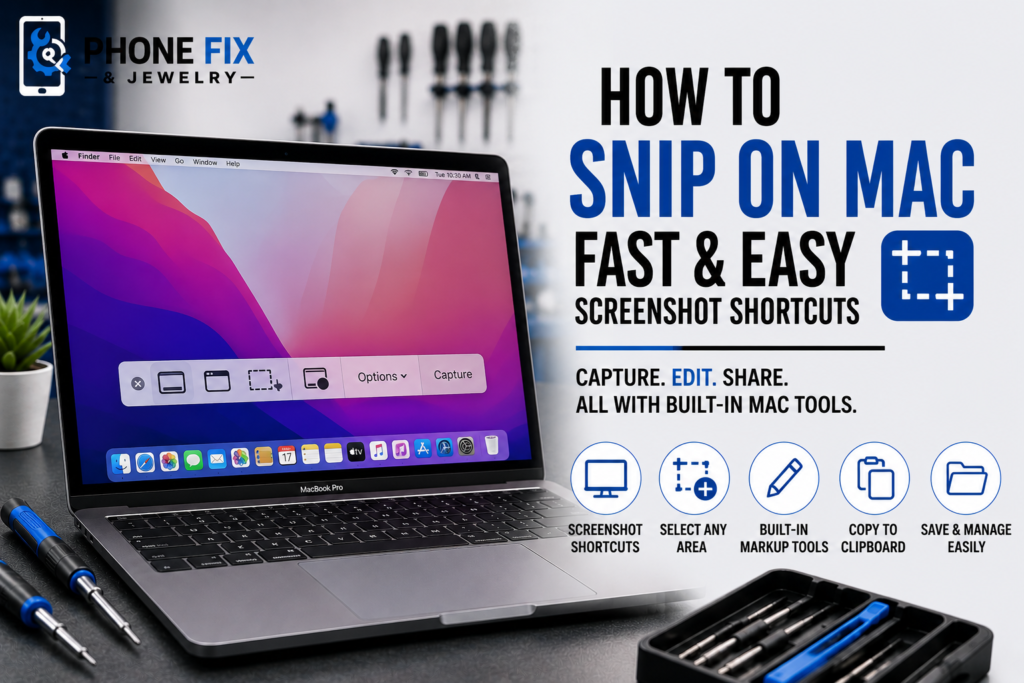
- Screen Control Menu: Press Command Shift and number five together. This option opens on-screen control bars with full options.
Built-in Apple Screen Control Menu
Pressing Command Shift 5 opens an easy control bar panel. This tool gives you full management over all picture settings.
Capture Control Buttons
The menu bar offers buttons for full or partial screens. You can select single app windows with one light click.
Screen Video Recorders
You can record active screen movement into clean video files. Pick full-screen recording or mark small areas for video.
Custom Saving Options
Click options to set your target folder for saved files. You can also add short timers before picture captures start.
Common Reasons Your Keys Stop Working
Sometimes pressing screen keys brings no picture or saved file. Physical board faults or background software glitches block key commands.
- Cracked Key Mechanisms: Dirt blocks physical switches under thin plastic key caps. Broken switches fail to send electrical signals to your system.
- Full Local Storage: Low drive space stops new image files from saving. Clear old downloads to free up space for fresh pictures.
- Wrong Control Settings: Custom keyboard rules change default Apple picture shortcuts. Check system settings to restore original factory key commands.
- Stuck Background Apps: Lagging software freezes screen capture tools temporarily. Force-close stuck apps to clear background system memory fast.
- Liquid Damage Corrosion: Spilled liquids corrode delicate copper traces under board keys. Shorted circuits block key presses from registering on system chips.
Managing Saved Pictures On Your Desktop
Managing captured screen pictures keeps your file folders tidy. You can move files quickly or edit images before sharing.
Quick Floating Thumbnail
A small picture box appears in your lower screen corner. Click this tiny box to open instant markup drawing tools.
Marking Image Lines
Use built-in drawing pens to add red circle marks. Write helpful text notes directly over your captured picture files.
Saving Directly to Folders
Drag floating thumbnails straight into open email or chat windows. Your system transfers files without clogging up desktop background views.
Hardware Care And Keyboard Typing Habits
Good device care keeps internal board switches working smoothly daily. Clean key panels prevent missing clicks during fast work tasks.
- Clean Plastic Key Caps: Dust settles inside tight spaces around keyboard keys. Wipe key surfaces clean using dry, soft microfiber cloths.
- Avoid Eating Near Keys: Small crumbs slide under key caps during daily work. Trapped crumbs block physical key movement when pressing shortcut rules.
- Keep Drinks Far Away: Liquid spills ruin internal logic boards instantly from shorts. Keep water glasses off desks near open laptop screens.
- Fix Sticky Key Switches: Sticky switches stop finger presses from opening top picture tools. Expert Laptop Repair swaps broken keys to restore smooth typing.
- Clear Air Circulation Vents: Overheating causes laptop chips to lag during heavy tasks. Keep air paths clear so cooling fans spin freely always.
- Update System Build Code: System updates patch internal software bugs across picture tools. Keep your system updated for fast daily key response.
Version Variations Across Different Software Builds
Modern Apple software handles screen captures with fast built-in tools. Older system builds rely on basic key commands without menus. Read additional details on Macintosh to see how Apple computer software developed over time.
Handling Screen Snaps Across Keyboard Types
Different keyboard styles need specific key steps to take pictures. Knowing your exact layout makes capturing screen images very easy.
- Standard Laptop Keys: Use standard Command-Shift steps for fast daily captures. This standard layout works for how to snip on Mac Air models.
- External Windows Keyboards: Press the Windows key plus Shift and number four together. This layout helps with how to snip on Mac with Windows keyboard setups.
- Clipboard Instant Pasting: Add the Control key to copy images to memory fast. This method aids in how to snip on Mac and copy to clipboard tasks.
- Desktop Computer Layouts: Standard shortcuts work across all fixed desktop setup models. Learn how to snip on Mac computer units with ease.
- Portable Laptop Systems: Compact laptop keys respond fast to basic finger taps. Use steps for how to snip on Mac laptop displays.
Fixing Stalled Screen Tools Quickly
Software glitches can freeze built-in screen capture tools suddenly. Simple soft resets clear system memory without deleting saved files.
Force Quit System Tools
Press Command, Option and Escape together on your keyboard. Select the stuck app cards and click Force Quit to close.
Run System Soft Restart
Click the Apple icon and pick restart menu. Rebooting clears temporary cache files, causing screen tool freezes fast.
Reset PRAM/System Chips
Hold Command Option P and R during early startup boots. This reset restores default hardware settings for key panels cleanly.
Why Physical Hardware Faults Stop Screen Captures
Dropping laptops or spilling coffee breaks key switches under caps. Internal board damage stops finger taps from activating picture capture tools.
Broken Key Dome Switches
Hard typing snaps small plastic scissor legs under keycaps. Damaged domes fail to complete circuits when setting up shots.
Corroded Logic Board Traces
Liquid spills burn thin copper traces across main logic boards. Burned traces stop number keys from sending proper signals to systems.
Swollen Internal Battery Packs
Old batteries swell and push up against keyboards from underneath. Heavy pressure locks key switches and causes dead typing spots.
Daily Care For Household Devices And Tech
Taking care of home devices prevents sudden screen and board failures. Regular maintenance keeps all family gear working well for years.
- Shield Mobile Screen Glass: Phone glass cracks easily when dropped on hard floors. Professional Smartphone Repair replaces broken glass to restore clear touch.
- Protect Portable Tablet Displays: Heavy books crush delicate tablet panels inside backpacks. Dependable Tablet Repair swaps damaged screens to restore smooth controls.
- Fix Loose Console Ports: Loose HDMI lines disrupt video output to home screens. Quality Game Console Repair fixes worn ports to restore steady TV signals.
- Inspect USB Power Cords: Frayed cords short out charging ports during power uploads. Replacement cables shield internal battery cells against sudden electrical surges.
- Clear Dust From Fans: Heavy dust clogs cooling fans and causes system heat shutdowns. Cleaning inner fan blades keeps internal processor chips running cool.
Comparing Service Choices For Broken Devices
Using local repair shops saves long weeks waiting for mail returns. Direct technician support gets your device fixed before leaving the shop.
Local Store Turnaround Speed
Local repair centers keep fresh keyboard parts and displays stocked. Most key swaps finish while you wait inside local shops.
Clear Upfront Price Quotes
Upfront repair estimates protect you against surprise fees later on. You review all fix costs before any work begins on site.
Direct Expert Tech Guidance
Speaking with local technicians solves tricky device issues very fast. You get clear tips on protecting laptop keys from future wear.
Knowing When To Repair Your Device
Replacing broken keys or bad batteries extends overall laptop life. Modern laptops carry fast processor chips that handle work for years. Reviewing steps for how to snip on MacBook keeps work simple. Mastering how to snip on Mac and paste speeds up daily emails. Learning how to snip on mac os keeps your skills up to date. You can also practice how to snip on Mac and then paste for reports. Understanding how to snip on MacBook helps with study tasks. Even specialized steps like how to snip on MacBook Air or how to snip on MacBook Pro use simple keys. Fixing hardware costs far less than buying brand new laptops.
How Phone Fix & Jewelry Can Help
Phone Fix & Jewelry can help you with your how to snip on Mac questions and complete device repair needs in Alexandria, VA. Faulty keyboards or sticky keys stop you from pressing required shortcut steps. Our skilled team delivers fast, reliable, and professional solutions at our local Van Dorn store.
We fix unresponsive keyboards, cracked screens, weak batteries, bad charging ports, and software bugs using quality replacement parts. Every function gets a check before you pay. We test keyboard keys, trackpads, display screens, speakers, and charging ports completely.
Every repair includes a written warranty on parts and labor for total peace of mind. Same issue returns within the window? You bring it right back. You do not need to mail your laptop away or wait days for return shipping. Visit us at 504C S Van Dorn St, Alexandria, VA 22304 near Van Dorn Metro station with free parking out front. Call (703) 328-0514 anytime during open hours to speak with our repair team today.
Conclusion
Mastering Apple screen shortcuts lets you capture images in seconds. Using built-in tools saves time during daily work tasks. Good care habits protect laptop keyboards from dust or liquid spills. When sticky keys or physical board faults block your finger taps, visit Phone Fix & Jewelry today. Our local team fixes keyboard issues fast so you can capture screen pictures smoothly again.
FAQs
How do I snip and paste on a Mac?
Press Command-Shift-Control-4 together to capture an area. Open your document and press Command-V to paste the image fast.
Is there a snipping tool on a Mac?
Yes, Apple includes built-in screen capture tools natively. Press Command Shift five to open full options menus on your screen.
What are the two ways to screenshot on a Mac?
Press Command Shift three to capture your whole screen. Press Command Shift four to select and capture a smaller, specific screen area.
How do I use F11 on Mac?
Hold the Fn key down and press F11 on your keyboard. This key combination triggers default system action rules or hides open windows.
Why does F11 not work on Mac?
Apple function keys default to system media or volume controls. Change keyboard settings to use standard F11 function rules instead.