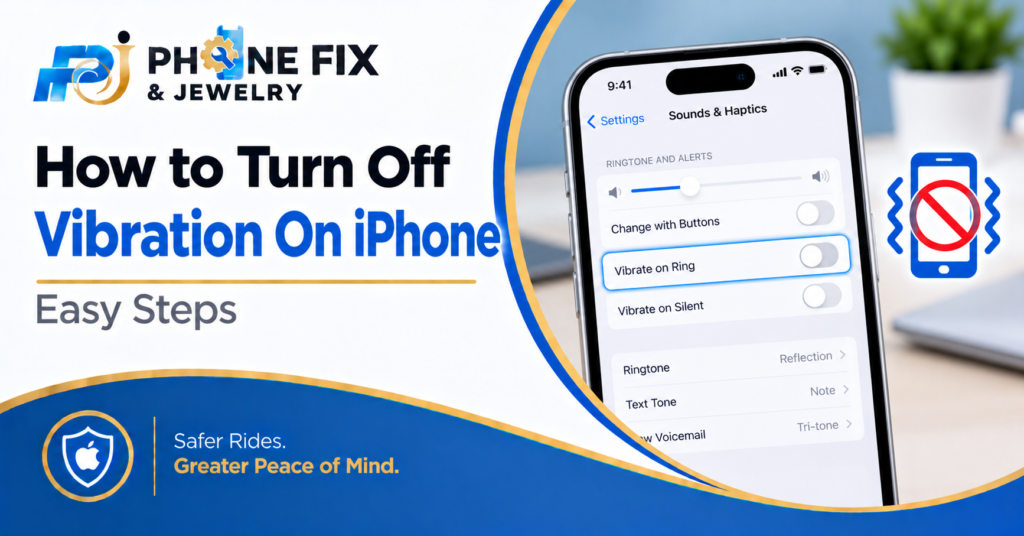
Have you ever felt your iPhone vibrate nonstop? Learning how to turn off vibration on iPhone helps reduce unwanted alerts. Your phone might vibrate during calls or typing. Some users also dislike small taps while using apps.
Apple provides separate settings for these vibrations. You don’t need to change every setting at once. This guide explains each option with simple steps. You’ll learn how to stop call vibrations and typing haptics. We’ll also cover what to do when vibrations continue.
Why Does Your iPhone Keep Vibrating?
Your iPhone uses vibration for different alerts. You might need to change one setting or several. First, identify the type of vibration you want to stop.
- Call Vibrations: Your phone shakes during incoming calls.
- Message Alerts: Text messages trigger vibration notifications.
- Keyboard Haptics: Your phone vibrates while typing.
- System Haptics: Small taps happen during certain actions.
- Emergency Alerts: Some vibrations come from emergency warnings.
Apple provides different controls for these settings. The full vibration switch also affects emergency alerts.
How To Turn Off Vibration On iPhone For Calls
You can change call vibration settings through Sounds & Haptics. The exact options depend on your iOS version. Newer versions use a Haptics menu for these controls. Follow the steps below to check your settings.
Open Sounds & Haptics
Open the Settings app on your iPhone. Scroll down and tap Sounds & Haptics. Look for the Haptics section near the top.
Your iPhone might show different options based on the software version. Follow the labels visible on your device. Apple updates these menus across iOS versions.
Choose Your Call Vibration Setting
Tap Haptics under the Ringtone and Alerts section. You might see options for silent mode. Choose Don’t Play in Silent Mode if preferred.
Select Never Play if you want no call vibrations. Check the selected option before leaving settings.
Test Your Phone
Ask someone to call your iPhone. Check whether your phone still vibrates. Try the test with silent mode enabled too.
If vibrations continue, check the system settings. You might need to change another haptic option.
How to Stop All iPhone Vibrations
Some users want every vibration turned off. Apple offers a system-wide setting for this purpose. Follow these steps carefully before changing it.
Open Accessibility Settings
Open Settings on your iPhone. Tap Accessibility from the main menu. Choose Touch to see touch-related settings.
Find the Vibration option in this section. Apple lists this setting for all vibration control.
Turn Off Vibration
Switch off the Vibration setting. Your iPhone will stop vibrating across supported uses.
This setting also affects earthquake and tsunami alerts. Read the warning before turning the switch off.
Check The Result
Test your phone after changing this setting. Try typing and receiving a call. Check whether any vibration still happens.
If you need emergency alert vibrations, consider another setting. You don’t have to disable every vibration.
How to Turn Off Keyboard Vibration on iPhone
Your iPhone might vibrate while you type messages. This feature uses haptic feedback from the keyboard. You can turn it off separately from other vibrations.
Open Keyboard Feedback
Go to Settings on your iPhone. Tap Sounds & Haptics from the menu. Scroll down and select Keyboard Feedback.
You should see options for sound and haptic feedback. The Haptic switch controls typing vibrations.
Disable Haptic Feedback
Turn off the Haptic option under Keyboard Feedback. Your keyboard should stop vibrating while typing.
You can leave keyboard sounds enabled if preferred. This lets you hear typing without feeling vibrations.
Test Your Keyboard
Open Messages or Notes on your iPhone. Type a short sentence and check the keyboard. If you feel no vibration, your setting works.
If vibrations remain, check your overall vibration setting. Some system controls work separately from keyboard haptics.
How To Stop Vibration For Specific Notifications
You might want to silence one app only. For example, Messages might vibrate too often. You can adjust notification settings for supported apps.
- Messages: Open notification settings for message alerts.
- Mail: Check email notification sound settings.
- App Alerts: Review individual app notification controls.
- Text Haptics: Select None for supported message settings.
- Custom Sounds: Choose a sound without vibration.
Apple provides specific message haptic controls. Open Settings > Notifications > Messages > Sounds. Tap Haptics and select None when available.
Change Messages Vibration
Open Settings and tap Notifications. Choose Messages from your app list. Tap Sounds and then Haptics.
Select None to remove message vibration. This setting applies to the selected notification sound.
Check Other Apps
Some apps use their own notification settings. Open the app’s settings when needed. Check whether it offers sound or vibration controls.
If the app lacks these options, use iPhone notification settings. Your available controls depend on the app.
Test Your Notifications
Send yourself a test message when possible. Check whether the phone vibrates after delivery. Repeat the test with other apps.
This helps identify which app causes the vibration. You can then change its settings separately.
How to Turn Off System Haptics on iPhone
Your iPhone might vibrate during system actions. These taps differ from incoming call vibrations. Apple provides a System Haptics setting on supported models.
Open Sounds & Haptics
Go to Settings and tap Sounds & Haptics. Scroll down through the available options. Look for System Haptics if your iPhone shows it.
This setting controls certain system feedback effects. The exact menu can differ across iOS versions.
Turn Off System Haptics
Switch off System Haptics if available. This reduces vibration feedback during supported actions.
You might still receive vibrations from other settings. Check call and notification controls separately.
Check Your Settings
Try pressing and holding an app icon. Check whether the phone still gives haptic feedback. Test other actions you often use.
If a vibration remains, check the master setting. Some settings control more than one feature.
What To Do If Your iPhone Still Vibrates
Sometimes vibrations continue after changing settings. First, check whether you disabled the correct option. Your phone might use another vibration setting.
Restart your iPhone and test again. Check for available iOS updates if the issue persists. If your phone vibrates without a clear reason, inspect its software and hardware. Repeated unexplained vibrations might need professional testing.
How Phone Fix & Jewelry Can Help
Phone Fix & Jewelry offers smartphone repair services in Alexandria, Virginia. Their technicians work on common phone hardware problems. These include screen damage, battery faults, and charging issues.
If your iPhone vibrates unexpectedly, software settings should come first. A technician can check the phone if problems continue. The shop also handles tablet, laptop and game console repairs.
Phone Fix & Jewelry operates at 504C S Van Dorn St. The business states that it offers same-day service. Its repair process includes testing device functions before payment. Written warranties cover parts and labor according to its website.
Call (703) 328-0514 for information about your device. You can also visit the shop in Alexandria.
Conclusion
Learning how to turn off vibration on iPhone takes minutes. Start by identifying which vibration bothers you. Then change the related setting in your iPhone. You can control calls, keyboard feedback, and system haptics separately. Full vibration control also affects emergency alerts. If settings don’t fix unexpected vibrations, seek repair advice. Phone Fix & Jewelry offers smartphone repair in Alexandria. Call (703) 328-0514 for service information.
Frequently Asked Questions:
How do I turn off vibration on iPhone completely?
Open Settings > Accessibility > Touch. Turn off Vibration to disable all iPhone vibrations. This also affects emergency alert vibrations.
How do I stop my iPhone from vibrating silently?
Open Settings > Sounds & Haptics. Tap Haptics and choose Never Play. Your available options depend on your iOS version.
How do I turn off keyboard vibration on iPhone?
Open Settings > Sounds & Haptics. Tap Keyboard Feedback and turn off Haptic. Your keyboard will stop giving haptic feedback.
Why does my iPhone still vibrate after turning it off?
Check other haptic settings and app notifications. Some features use separate controls. Restart your iPhone if vibrations continue.
Can Phone Fix & Jewelry repair vibration problems?
Phone Fix & Jewelry offers smartphone repair services. Contact the shop for information about your iPhone’s vibration issue. Call (703) 328-0514.