Have you ever felt your iPhone vibrate during quiet moments? Maybe you sit in class or work at your desk. You might want complete silence without missing other alerts. Learning how to keep vibration on your iPhone helps you control those interruptions. Your iPhone offers several vibration settings for different needs.
You don’t need special tools or technical skills for this. A few taps inside Settings can change how your phone responds. This guide explains each option in simple steps. You’ll learn how to stop vibrations for calls and typing. You’ll also learn when your iPhone needs professional repair.
Why Does Your iPhone Vibrate?
Your iPhone uses vibration for several different reasons. Understanding the source helps you choose the right setting.
- Incoming Calls: Your iPhone vibrates when someone calls you.
- Text Messages: Notifications can trigger vibration alerts.
- Keyboard Feedback: Your phone may vibrate during typing.
- System Haptics: Some taps and actions create small vibrations.
- Emergency Alerts: Certain emergency messages can trigger vibration.
How to Deactivate Vibration on iPhone
Your iPhone includes settings for specific alerts and system feedback. Follow the steps below based on your needs.
Turn Off Vibration For All Alerts
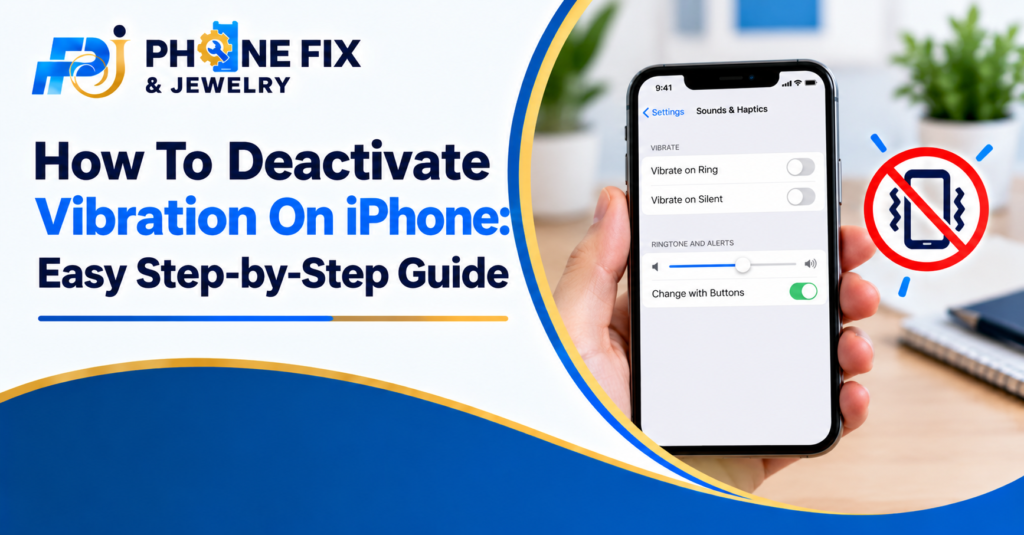
Open the Settings app on your iPhone. Tap Sounds & Haptics to view sound settings. Find the Haptics option under Ringtone and Alerts. Choose Never Play to stop alert vibrations. This setting controls vibration for calls and alerts. The exact options can vary between iOS versions. Check your screen if the names look different.
Turn Off All iPhone Vibrations
Some users want complete vibration control across their phones. Apple provides a setting inside Accessibility.
- Open Settings on your iPhone.
- Tap Accessibility.
- Choose Touch.
- Find the Vibration switch.
- Turn Vibration off.
This setting disables all iPhone vibrations. It also affects earthquake and tsunami alerts. Think carefully before disabling every vibration. Emergency alerts might lose their vibration signal.
Turn Off Keyboard Vibration
Do you feel tiny taps while typing messages? Your keyboard has its own haptic setting.
Open Settings and tap Sounds & Haptics. Select Keyboard Feedback from the list. Turn off Haptic to stop typing vibrations. Your keyboard can still make typing sounds. You can choose the setting that feels comfortable.
How To Stop Vibration For Calls And Messages
You might want silence during work or sleep. You don’t always need to disable every phone vibration. Your iPhone lets you adjust specific sound settings.
Change Call Vibration Settings
Open Settings and select Sounds & Haptics. Tap Haptics under Ringtone and Alerts. Choose Never Play if you want no alert vibration. You can also select another available option. This gives you control over incoming call feedback. Check your current selection before leaving Settings.
Stop Message Notification Vibrations
Message alerts can interrupt meetings and quiet time. You can adjust notification settings for your needs. Open Settings and tap Notifications. Select Messages and review its sound settings. Your iPhone offers notification controls for individual apps. Available options depend on your iOS version. You can also adjust message sound and haptic settings.
Disable System Haptics
Your iPhone may vibrate during certain system actions. These small taps come from system haptic feedback. Open Settings and select Sounds & Haptics. Look for the System Haptics option. Turn it off if you want fewer system vibrations. This setting differs from the master vibration switch. Check both settings if vibrations continue.
How To Deactivate Vibration On iPhone Without Missing Alerts
Complete silence isn’t always the best choice for everyone. You might still want certain alerts during work or sleep. Your iPhone offers different settings for different alert types.
- Silent Mode: Reduces ringing sounds but may still vibrate.
- Do Not Disturb: Silences many calls and notifications.
- Custom Haptics: Lets you choose available vibration settings.
- Keyboard Haptics: Controls vibration during typing.
- Accessibility Vibration: Turns off all device vibrations.
Choose settings based on your own needs. You don’t have to disable every vibration.
What To Do If Your iPhone Keeps Vibrating
Sometimes your iPhone vibrates even after changing settings. Start by checking your alert and haptic options. Make sure you changed the correct setting. Some settings control specific alerts while others affect everything. Restart your iPhone if the problem continues. Check for available iOS updates through Settings. If vibration seems random or unusual, check for damage.
Check Your Settings Again
Review Sounds & Haptics before trying other fixes. Look at Haptics and System Haptics settings. Then check Accessibility and its Vibration switch. Different settings can control different types of feedback. You may have changed one setting but missed another. Follow each menu carefully.
Restart Your iPhone
A restart can help with temporary software problems. Turn your iPhone off using its normal controls. Wait briefly before turning it back on. Test vibration after the phone starts again. If the issue remains, check your software version. Don’t assume hardware damage without checking basic settings first.
Check For Physical Damage
Your phone might vibrate strangely after a hard drop. Water exposure can also cause hardware problems. Look for other signs of trouble with your device. Check whether the screen or charging port works properly. If several features fail, seek professional repair assistance.
How Phone Fix & Jewelry Can Help With iPhone Problems
Phone Fix & Jewelry offers smartphone repair services in Alexandria, Virginia. The shop handles cracked screens and battery problems. Its team also repairs charging ports and software issues. You can visit the Van Dorn location for service. The shop offers same-day repairs for many devices.
Technicians test key functions before you leave. These checks include touch screens and charging ports. Repairs include a written warranty on parts and labor. The team also works on tablets and laptops. Game console repair services are available too. If your iPhone has unusual vibration issues, contact the shop. A technician can check whether your phone needs repair. Visit 504C S Van Dorn St or call (703) 328-0514.
Conclusion
Learning how to deactivate vibration on an iPhone takes little time. You can adjust alerts through Sounds & Haptics. You can also disable all vibrations through Accessibility. Check emergency alert effects before choosing complete silence. If your phone behaves strangely, review settings first. Physical damage may require professional help. Phone Fix & Jewelry offers repair services in Alexandria. Call (703) 328-0514 if your device needs attention.
Frequently Asked Questions:
How do I turn off all vibration on iPhone?
Open Settings, then Accessibility and Touch. Turn off the Vibration switch. This disables all iPhone vibrations, including some emergency alerts.
Can I stop iPhone vibration while typing?
Yes. Open Settings and choose Sounds & Haptics. Tap Keyboard Feedback and turn off Haptics. Your keyboard will stop its typing vibration.
Why does my iPhone vibrate in Silent Mode?
Silent Mode can still allow vibrations. Open Sounds & Haptics and check Haptics settings. Choose Never Play if you want no alert vibrations.
Does turning off vibration affect emergency alerts?
Yes. Apple’s master Vibration switch also affects earthquake and tsunami alerts. Consider this before disabling all vibrations.
Can Phone Fix & Jewelry repair vibration problems?
Phone Fix & Jewelry provides smartphone repair services in Alexandria. Call (703) 328-0514 to discuss your device issue with the shop.