
Have you ever struggled to turn off your Apple Watch? How to Switch Apple Watch Off is simple once you know the buttons. Many users press the wrong button first. Others search through settings for the power option. You don’t need special tools or advanced skills. Your watch has a built-in power menu.
This guide explains each step in simple words. You’ll also learn other ways to shut down your watch. Plus, we’ll cover common power problems. Follow each step carefully for better results.
What To Know Before Turning Off Your Apple Watch
Turning off your watch takes only a few seconds. Check these points before starting the shutdown process.
- Battery Check: Make sure your watch has enough battery power.
- Charging Status: Remove your watch from its charger first.
- Button Location: Find the side button below the Digital Crown.
- Screen Access: Wake your watch before opening power options.
- Safe Shutdown: Use the power slider instead of forcing shutdown.
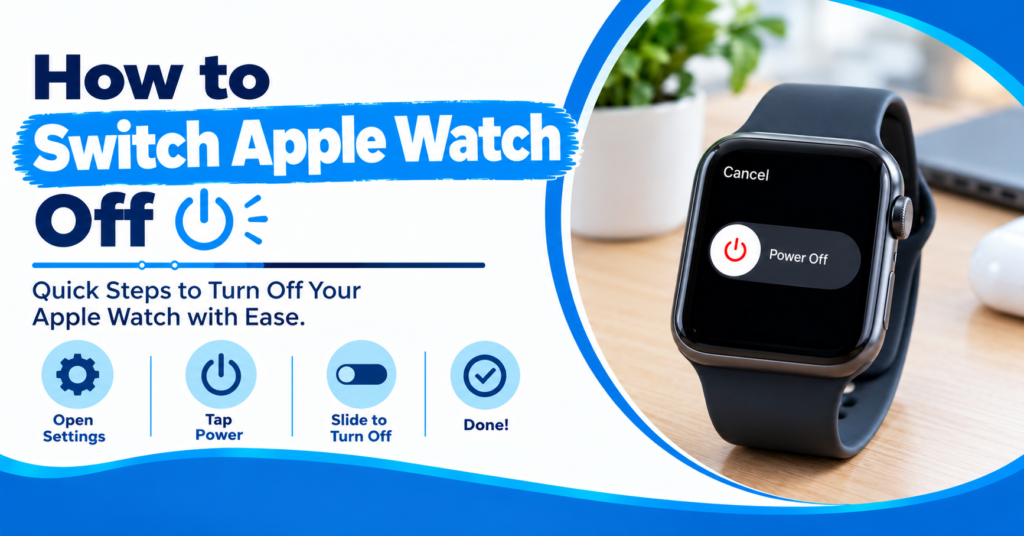
How To Switch Apple Watch Off Using The Side Button
Most Apple Watch models follow similar shutdown steps. You only need the side button and touchscreen. Follow the steps below in the correct order.
Step 1: Press And Hold The Side Button
Look at the right side of your Apple Watch. You’ll see the Digital Crown and side button. Press and hold the side button for several seconds. Release it when the power menu appears.
Don’t press the Digital Crown during this step. The Digital Crown opens apps and other watch functions. The side button opens the shutdown options.
Step 2: Tap The Power Icon
The screen will show several options. Look for the power icon near the top. Tap the icon with your finger. A power-off slider should appear on your screen.
The exact screen design might vary slightly. Different watchOS versions show similar power options. Focus on the power symbol instead of other choices.
Step 3: Drag The Power Off Slider
Place your finger on the power off slider. Move it from left to right. Your watch will begin shutting down immediately.
Wait for the screen to turn completely black. Don’t press buttons during this short process. Your Apple Watch has now switched off.
Other Ways To Turn Off Apple Watch
The side button offers the fastest shutdown method. Some users prefer using the Settings app instead. This option helps when the power menu behaves differently.
Use The Settings App
Wake your Apple Watch and press the Digital Crown. Find and open the Settings app. Scroll down until you see General. Tap General and scroll toward the bottom.
Look for the Shut Down option. Tap it to open the power slider. Drag the slider from left to right. Your watch should turn off after this action.
This method works well for users who prefer menus. It also provides another option during button problems.
Turn Off The Watch While Charging
Your Apple Watch should not remain on its charger. Remove it from the charging puck first. Then press and hold the side button.
Wait for the power menu to appear. Tap the power icon and move the slider. Your watch will shut down after completing these steps.
Disconnecting the charger first keeps the process simple. It also follows Apple’s regular shutdown instructions.
Turn The Watch Back On
Turning off your watch doesn’t delete your information. You can restart it whenever you need it. Press and hold the side button again.
Release the button after seeing the Apple logo. Wait for the watch face to appear. The startup process might take a short while.
Keep your watch charged during startup. Low battery power might prevent it from turning on.
Why Your Apple Watch Might Not Turn Off
Sometimes the normal shutdown process doesn’t work. Your watch might freeze or ignore screen taps. Several common problems can cause this issue.
- Frozen Screen: The display might stop responding to finger taps.
- Low Battery: Your watch might lack enough power.
- Software Problem: A system error might block shutdown controls.
- Button Damage: A damaged side button might not respond.
- Screen Fault: Touch problems might prevent slider movement.
What To Do If Apple Watch Won’t Turn Off
A watch that refuses to shut down needs careful checking. Try the following steps before seeking repair help.
Check The Side Button
Press the side button gently and hold it. Don’t use excessive force during this process. Check whether the button feels stuck or loose.
Remove any tight case around your watch. Some cases might block button movement. Try opening the power menu again afterward.
If the button stays unresponsive, hardware damage might exist. A repair technician should inspect the button.
Try A Force Restart
A force restart differs from a normal shutdown. Use it only when your watch freezes. Don’t try this method during a regular shutdown.
Press and hold the side button and Digital Crown together. Keep holding both buttons for around ten seconds. Release them after the Apple logo appears.
This method restarts the watch instead of powering it off. Avoid using it when your watch responds normally.
Charge The Watch First
Your Apple Watch might have a drained battery. Place it on a compatible charger. Leave it charging for several minutes.
Check whether the charging symbol appears. Try turning on the watch after some charging time. A damaged charger might also cause charging problems.
If the watch remains completely blank, seek technical assistance. A technician can test the battery and charging parts.
When Should You Switch Apple Watch Off?
Most users don’t need to turn off their watch often. However, certain situations make shutdown useful. Turning off your watch saves some battery during storage.
You might also shut it down before traveling. Some users prefer powering down during long breaks. A restart might help after small software glitches.
Don’t switch off your watch during important emergency situations. Keep it ready when you need health or safety features. Use shutdown when you don’t need active watch functions.
How Phone Fix & Jewelry Can Help With Apple Watch Problems
Phone Fix & Jewelry provides device repair services in Alexandria, Virginia. Our technicians work with phones, tablets, laptops, and game consoles. We also help customers with device problems requiring careful testing.
If your Apple Watch button stops responding, seek proper technical advice. Our team can discuss your issue and available repair options. We check device problems before suggesting further work.
Our store is located at 504C S Van Dorn St, Alexandria, VA 22304. We remain open seven days a week. Phone Fix & Jewelry also provides written warranties on parts and labor.
Call (703) 328-0514 to ask about available assistance. Our team will help you understand the next step.
Conclusion
Learning how to switch Apple Watch off takes little time. The side button gives you the quickest shutdown method. Settings also provides another way to power down. Try a force restart only during freezing problems. Check your battery and buttons if shutdown fails. For ongoing device problems, seek professional help. Phone Fix & Jewelry can discuss your repair needs.
Frequently Asked Questions:
How do I switch Apple Watch off quickly?
Press and hold the side button until the power menu appears. Tap the power icon and drag the power off slider to the right.
Why won’t my Apple Watch turn off?
A frozen screen, damaged button, or software issue might cause problems. Try charging your watch first. A force restart might help during freezing.
Can I turn off Apple Watch through Settings?
Yes. Open Settings and tap General. Scroll down and select Shut Down. Move the power off slider to the right.
Does switching off Apple Watch delete my data?
No. A normal shutdown doesn’t remove your apps or personal information. Your watch keeps its data after you turn it back on.
How to Switch Apple Watch Off without the side button?
Open Settingsusingh the Digital Crown. Select General and find Shut Down. Use the displayed slider to turn off your watch.