Have you ever forgotten to send a birthday message on time? Learning How to Schedule a Text Message on iPhone solves this problem fast. Many people forget important dates during busy workdays.
Others do not want to disturb friends late at night. This guide shows quick steps to send delayed texts easily. You will learn how to use built-in Apple options. You will also learn how local repair techs fix screens so your touch screen works smoothly.
Built-in Apple Tools For Message Timers
Built-in app tools give you full control over text timing. You can queue words to go out while sleeping.
- Open Message App: Tap the green bubble icon on your main screen. Select your saved contact person directly.
- Type Text Lines: Write your full message inside the text entry box. Do not press the blue send arrow yet.
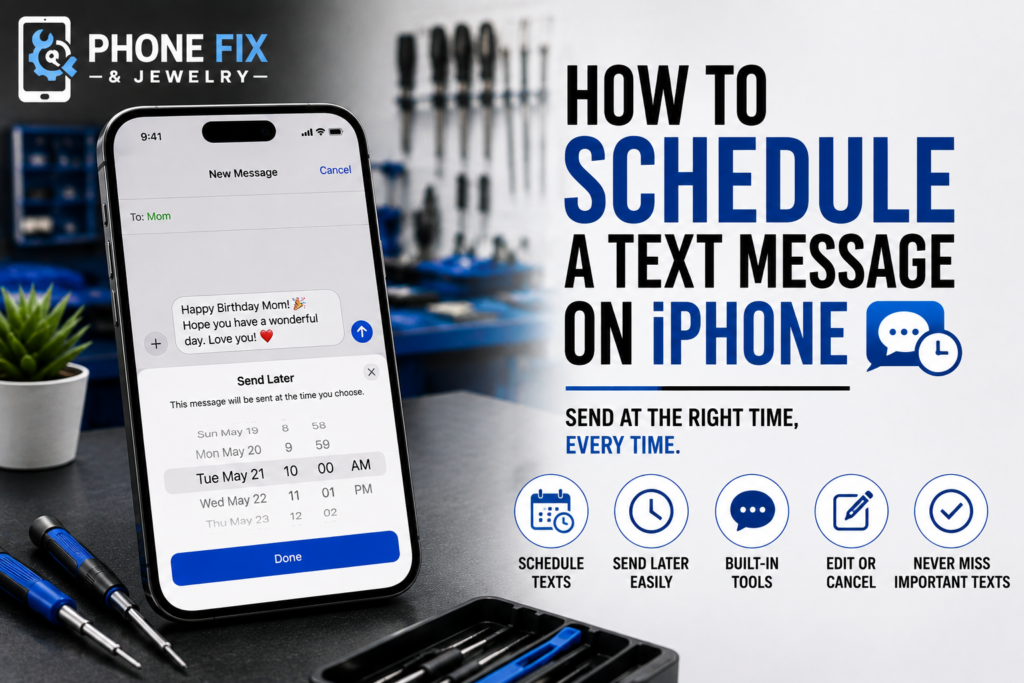
- Tap Plus Sign: Touch the small plus sign beside your entry box. Scroll down the options to choose Send Later.
- Set Delivery Time: Select your target date and exact hour cleanly. Set timers for future hours or days ahead.
- Press Send Arrow: Tap the blue arrow to lock text into the queue. Your message stays stored safely until sending time.
Setting Up Custom Shortcut Rules
The Shortcuts app lets you create repeating auto messages easily. This method works great for regular weekly check-ins.
Create Personal Rules
Open your Shortcuts app and tap the bottom automation tab. Pick the top plus icon to build a fresh rule.
Set Specific Trigger Times
Tap time of day options to set your run schedule. Choose daily or weekly repeats to run your text automatically.
Add Message Action
Search for send message commands inside the top search bar. Select your contact and write out your custom text lines.
Reasons Your Queued Messages Fail To Send
Understanding why scheduled texts get stuck saves you from trouble. Signal drops and dead power blocks delivery attempts often.
- Dead Battery Power: Phones shut down when power drops to zero. Outbox queues pause until phone screens turn back on.
- Active Flight Mode: Flight mode turns off all wireless connections instantly. Texts pause inside outbox queues until signals return.
- Weak Network Links: Bad cellular signal stops text leaving your outbox queue. Step near big windows to grab strong signal bars.
- Wrong Phone Digits: Typing incorrect numbers stops delivery to target lines. Double-check number entries before locking send times down.
- Full Local Storage: Packed phone memory stops app scripts running on time. Clear old files to keep internal background tools running.
Editing Queued Messages On Your Screen
Managing stored texts lets you update words before send times. You can edit sentences or cancel delivery completely.
Find Dashed Outline Bubbles
Open your chat screen to see pending blue bubble texts. Scheduled texts display dashed lines around text box borders.
Edit Sentence Text
Touch and hold the dashed text bubble with your finger. Tap the edit choice to alter words inside bubbles.
Cancel Scheduled Sending
Press the small Edit option located right above your text. Select Delete message to stop scheduled delivery entirely.
Hardware Care And Screen Typing Habits
Good device care keeps the touch glass quick for easy typing. Clean screen panels prevent annoying typos while setting up text timers.
- Clean Touch Glass Panels: Dirt and oil collect on screen glass over time. Wipe screen surfaces clean using soft microfiber cloths.
- Use Strong Case Covers: Hard drops crack delicate touch layers under top glass. Quality covers absorb sudden impacts from hard floor drops.
- Keep Air Channels Clear: Internal heat builds up inside heavy covers during charging. Remove thick cases if your phone feels hot inside hands.
- Fix Cracked Touch Glass: Fractured glass stops finger taps from opening top menus cleanly. Professional Smartphone Repair swaps broken glass to restore response.
- Swap Aging Battery Cells: Old batteries swell up and press against display panels. Fresh battery swaps keep inner power steady all day long.
- Update System Build Code: Software updates clear laggy controls on aging phone models. Regular updates keep your timer menus running smoothly always.
Version Variations Across Different Software Builds
Different software builds handle message timing options in unique ways. Checking system details helps locate correct setup buttons fast. Read additional history on iMessage to see how messaging platforms developed over the years.
Handling Text Timers Across Model Generations
Older phone builds use different steps to set up timed texts. Checking your system build ensures fast setup on any model.
- Older System Setup Steps: Older software relies on Shortcuts rules for sending delayed texts. This rule applies to how to turn off do not disturb on iPhone 11 users.
- Mid Generation Model Setup: Middle software builds handle auto rules through system utilities. These steps match how to turn off Do Not Disturb on iPhone 12.
- Later Model Layout Options: Newer menu layouts use simple plus buttons inside chat screens. This works for how to turn off Do Not Disturb on iPhone 13 phones.
- Modern System Menu Controls: Updated software lets you pick timing directly inside chat boxes. Review steps for how to turn off Do Not Disturb on iPhone 14 builds.
- Fresh USB Generation Steps: Advanced software makes scheduling fast with direct menu buttons. Learn how to schedule a text on iPhone 15 for quick sending.
Fixing Stalled Chat Screens Quickly
Software bugs can freeze chat apps while setting up timers. Quick soft resets clear stuck memory without erasing stored files.
Force Close Frozen Apps
Swipe up from the bottom of your screen to view app cards. Drag the green chat card upward to close stuck screens.
Run Soft Force Restart
Press volume up, then volume down quickly on the side keys. Hold the power key until the Apple logo shows up.
Reset System Network Links
Open Settings menus and tap General options near the bottom. Select Reset Network Settings to clear bad connection files fast.
Why Display Faults Ruin Touch Sensitivity
Dropping phones breaks inner touch sensors behind display glass layers. Cracking internal sensors stops screen taps from picking accurate timer choices.
Fractured Inner Sensor Arrays
Hard impacts snap tiny touch wires inside screen display layers. Broken sensors ignore finger taps when selecting send times.
Swollen Internal Power Packs
Aging batteries expand and push against screen panels from behind. Extreme pressure creates dead touch spots across typing keys.
Damaged Logic Board Chips
Sudden drops crack solder connections under primary board processing chips. Fractured chips cause random app crashes while typing text messages.
Daily Care For Household Devices And Tech
Taking care of home devices prevents sudden screen failures daily. Regular checks keep all family gadgets working fine for years.
- Shield Wide Screen Panels: Large tablet glass cracks under heavy weight inside bags. Expert Tablet Repair changes broken screens to restore smooth touch.
- Clear Laptop Cooling Vents: Dust clogs laptop fans and causes overheating shutdowns daily. Quality Laptop Repair cleans air paths to protect main boards.
- Fix Loose Power Jacks: Wobbly charger lines bend internal connector pins on game units. Replacing worn jacks restores steady electrical flow back inside.
- Check USB Charging Cords: Frayed cords short out charging port pins during power-ups. Fresh cords protect battery cells against sudden power spikes.
- Clean Earpiece Speaker Grills: Dirt blocks audio output from top earpiece holes over time. Clearing speaker mesh brings clear sound back for calls.
Comparing Service Choices For Broken Devices
Using local repair shops saves weeks waiting for simple fixes. Direct tech support gets your device fixed before leaving the store.
Local Store Turnaround Speed
Local shops keep fresh screen parts and batteries on site. Most glass replacements are finished while you wait inside the shop.
Clear Upfront Price Quotes
Clear estimates protect you from unexpected extra charges later on. You know total repair costs before work starts on site.
Direct Expert Tech Guidance
Talking directly to repair techs solves weird phone issues fast. You get straight tips on caring for touch screen glass.
Knowing When To Repair Your Device
Fixing cracked glass or bad batteries extends your device life. Modern phones carry fast chips that handle work for years. Reviewing steps like how to schedule a text on iPhone iOS 17 helps you use features. Knowing how to schedule a text on iPhone 16 keeps your options current. Learning how to schedule a text message on iPhone to Android keeps you connected with everyone. You can also discover how to schedule a text on WhatsApp for group chats. Even upcoming builds, like how to schedule a text on the iOS 26 build on simple steps. Fixing hardware costs far less than buying new phones.
How Phone Fix & Jewelry Can Help
Phone Fix & Jewelry can help you with your how to schedule a text message on iPhone needs and device repairs in Alexandria, VA. Broken touch screens stop you from selecting dates or setting time wheels. Our skilled team delivers fast, reliable, and professional solutions at our local Van Dorn store.
We fix unresponsive screens, bad batteries, broken charging ports, and software bugs using quality parts. Every function gets a check before you pay. We check touch screen panels, cameras, speakers, and charging ports completely. Every repair includes a written warranty on parts and labor for peace of mind.
Same issue returns within the window? You bring it back. You do not need to mail your phone away or wait days. Visit 504C S Van Dorn St, Alexandria, VA 22304 near Van Dorn Metro station with free parking out front. Call (703) 328-0514 anytime during our hours to speak with our repair team today.
Conclusion
Setting up delayed texts keeps you connected with family without losing sleep. Built-in Apple tools make setting send timers quick and easy. Good habits protect your screen glass from sudden drops over time. If a broken screen or faulty touch layer stops you from setting timers, visit Phone Fix & Jewelry today. Our local team fixes screen issues fast so you can text smoothly again.
FAQs
Where is the send later button on iPhone?
Open your chat window inside Messages and tap the plus sign. Scroll down the menu choices to find the Send Later button.
How do you set a time to send a text message?
Tap Send Later inside chat menus to open timer wheels. Pick your date and time, then tap the blue arrows.
Can you schedule a text message to yourself on an iPhone?
Yes, write your text and enter your number in the contact boxes. Use Send Later tools to receive reminders at set times.
Can I do a scheduled text message on my iPhone?
Yes, you can schedule texts using Send Later or Shortcuts. Learning how to schedule a text message on iPhone takes simple taps.
Can someone tell if you send a scheduled iMessage?
No, your recipient sees texts as normal messages upon delivery. No tags show that messages were scheduled in advance.