Deleting an iPad app looks simple at first. Yet Apple gives you several removal choices. Each choice does something different to your app.
You might remove an app from Home Screen only. The app then stays inside your App Library. You might also delete it completely from your iPad. There is another choice called Offload App. Offloading removes the app
but keeps its data. This works well when storage space feels tight.
Before deleting anything, check what you need. Some apps store files or saved work. Check your app before removing it completely. This guide explains each removal method clearly. You’ll also learn what happens after deletion.
What Happens When You Remove an iPad App?
Your removal choice decides what happens next. Apple gives you three main choices. Each one suits a different need.
- Home Screen Removal: The app stays inside App Library.
- App Deletion: The app and local data leave your iPad.
- App Offloading: The app leaves while data stays.
- App Library Removal: You delete apps without Home Screen access.
- Storage Removal: Settings shows which apps use space.
Apple confirms Home Screen removal does not delete apps. The app remains available through App Library. Full deletion removes the app from your iPad.
How to Remove an iPad App From Home Screen
The Home Screen method takes only a few taps. It works well when you know which app to remove. You don’t need to open Settings first.
Touch and Hold the App
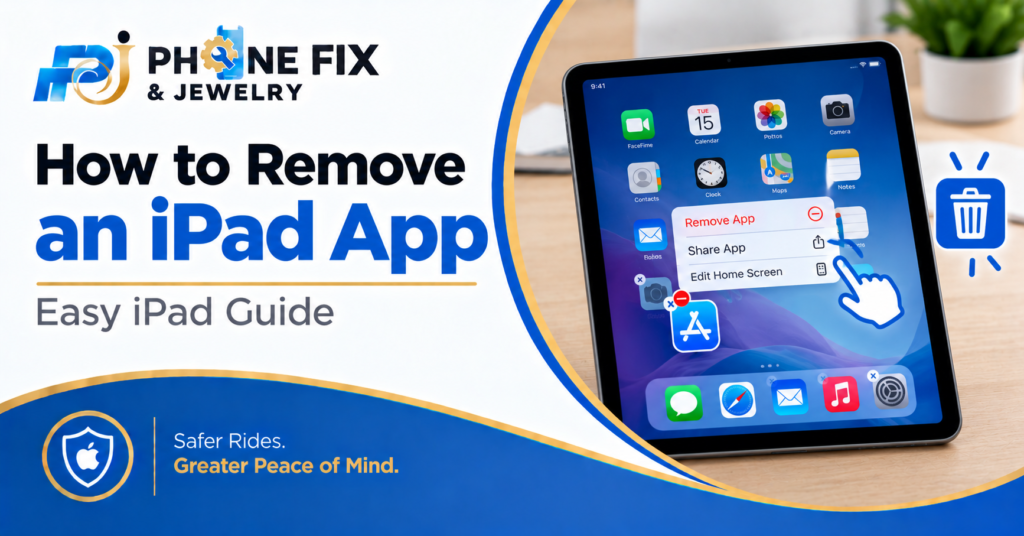
Find the app on your Home Screen. Touch and hold its icon. A small menu will appear beside it. Tap Remove App from the menu. You will then see two choices. Choose Remove from Home Screen if you want. The app stays inside your App Library afterward.
Delete the App Completely
Choose Delete App instead of Home Screen removal. Your iPad will ask you to confirm. Tap Delete to finish removing the app. This removes the app from your iPad. Local app data also leaves your device. Data saved through iCloud might remain available.
Remove Apps From App Library
Swipe left past your Home Screen pages. Keep swiping until App Library appears. Find the app inside your App Library. Touch and hold its icon. Tap Delete App from the menu. Then tap Delete to confirm. This removes the app from your iPad completely.
How to Remove an iPad App From Settings
Settings gives you another useful removal method. It works well when storage space matters. You also see how much space each app uses.
- iPad Storage: Open Settings and tap General.
- App List: Tap iPad Storage to view apps.
- Storage Size: Check how much space each app uses.
- App Selection: Tap the app you want removed.
- Delete Option: Tap Delete App and confirm.
This method makes storage cleanup much easier. Large apps appear with their storage use. You can remove apps based on their size.
How to Remove an iPad App From Settings
Open Settings on your iPad first. Tap General from the main menu. Next, tap iPad Storage. Wait for your storage list to load. You will see apps using device storage. Tap the app you want to remove. Tap Delete App on the next screen. Confirm your choice when asked. Your iPad then removes the selected app. This method suits storage cleanup very well. You don’t need to find icons first. You also see storage use before deleting anything.
Check Storage Before Deleting
Look at the app size before removing it. Some games take several gigabytes of space. Large video apps might also use lots of storage. You might find another app worth removing instead. Check your storage list before making changes. This saves you from deleting useful apps.
Delete Apps You Rarely Use
Unused apps often sit untouched for months. They still take storage space on your device. Removing them creates room for new files. Start with apps you no longer use. Check old games, shopping apps, and video apps. Keep apps you still need for work or school.
Keep Important App Data
Check your saved files before deleting apps. Some apps store documents outside your normal files. Cloud storage might keep some data available. Check the app’s own settings before removal. Look for export or backup options first. This matters more for work and school apps.
Delete or Offload an iPad App?
Deleting and offloading are not the same. Both remove the app from active storage. Offloading keeps your documents and data.
- Delete App: Removes the app and local app data.
- Offload App: Removes the app but keeps its data.
- Remove Home Screen: Hides the app from view.
- Reinstall App: Downloads a deleted app again.
- Storage Check: Shows space used by each app.
Offloading works well for apps you rarely use. You keep the related documents and data. You can reinstall the app later.
When Deleting Makes Sense
Delete an app when you don’t need it anymore. This works well for old games. It also suits apps you stopped using. Deleting frees the app’s local storage. You also remove its local app data. Check your files before confirming deletion.
When Offloading Makes Sense
Choose offloading when you might use an app later. Your iPad removes the app itself. Your documents and data stay on your device. You can reinstall the app later. Your saved data remains available for use. This gives you more storage without full deletion.
When Home Screen Removal Works
Use Home Screen removal when you want less clutter. The app remains installed on your iPad. You still find it inside App Library. This choice works well for rarely opened apps. It also keeps your existing app data. Nothing gets deleted from the device.
Why Can’t I Remove an iPad App?
Sometimes the Delete App option doesn’t appear. Several settings might cause this problem. Some Apple apps also have removal limits. Screen Time restrictions might block app deletion. Check your Content and Privacy settings first. Apple provides controls for blocking app deletion.
Some built-in Apple apps have special rules. Certain apps cannot leave your iPad completely. Apple decides which built-in apps support deletion. If an app refuses removal, check Screen Time. Also check whether it belongs to Apple. These checks often explain the missing delete option.
What If the App Still Appears?
First, check your App Library. The app might only leave your Home Screen. Search your App Library before deleting it again.
You might also see a cloud symbol. This often points toward an offloaded app. Tap the app to download it again. If deletion still fails, restart your iPad. Then check your storage settings again. Also check your Screen Time restrictions.
Apple also supports reinstalling deleted apps later. Open the App Store and find your previous apps. Availability depends on the app remaining in Apple’s store.
Does Deleting an App Cancel Subscriptions?
No, deleting an app does not cancel subscriptions. Your subscription might continue charging afterward. Apple recommends canceling unwanted subscriptions first.
Open your Apple Account settings to review subscriptions. Check each active subscription before deleting apps. This prevents unwanted future charges.
An app and its subscription work separately. Removing the app doesn’t end your billing plan. Always check subscriptions before confirming deletion.
How Phone Fix & Jewelry Can Help
Phone Fix & Jewelry helps with iPad problems beyond app removal. Their Alexandria shop handles tablet repairs for many common issues.
Their tablet service covers cracked screens and batteries. They also handle charging ports and software errors. Slow tablets also receive diagnostic checks. A broken screen makes touch controls harder. A faulty charging port causes other problems too. Software trouble might also affect normal app use.
The shop offers free diagnostic checks before repairs. You receive a written quote before work begins. Parts and labor also include a written warranty. Phone Fix & Jewelry sits at 504C S Van Dorn St. The shop offers same-day service for many repairs. Call (703) 328- 0514 for help with your iPad.
What To Check Before Deleting Any App
Take a quick look before pressing Delete. Check whether the app stores files you need. Review subscriptions linked to the app too.
Also check your iCloud data before removal. Some documents might remain stored there. Other files might only live inside the app.
If you need the app later, remember its name. You might need it again after some time. Deleted apps usually remain available through App Store history.
Conclusion
Removing an iPad app takes only a few taps. First decide what you want removed. Home Screen removal keeps the app installed. Offloading keeps your data while freeing app space. Full deletion removes the app from your iPad. Check subscriptions and saved files before deleting. For iPad hardware problems, Phone Fix & Jewelry offers local repair help. Call (703) 328 0514 for assistance.
Frequently Asked Questions:
How do I remove an app from my iPad?
Touch and hold the app icon. Tap Remove App and choose Delete App. Tap Delete again to confirm removal from your iPad.
How do I remove an app without deleting it?
Touch and hold the app. Tap Remove App and choose Remove from Home Screen. The app stays available inside your App Library.
How do I delete an app from iPad storage?
Open Settings and tap General. Choose iPad Storage and select your app. Tap Delete App and confirm your choice.
Why won’t my iPad let me delete an app?
Screen Time restrictions might block app deletion. Some built-in Apple apps also have removal limits. Check your restriction settings before trying again.
Does deleting an iPad app cancel its subscription?
No. Deleting an app does not cancel its subscription. Review your Apple subscriptions and cancel unwanted plans separately.