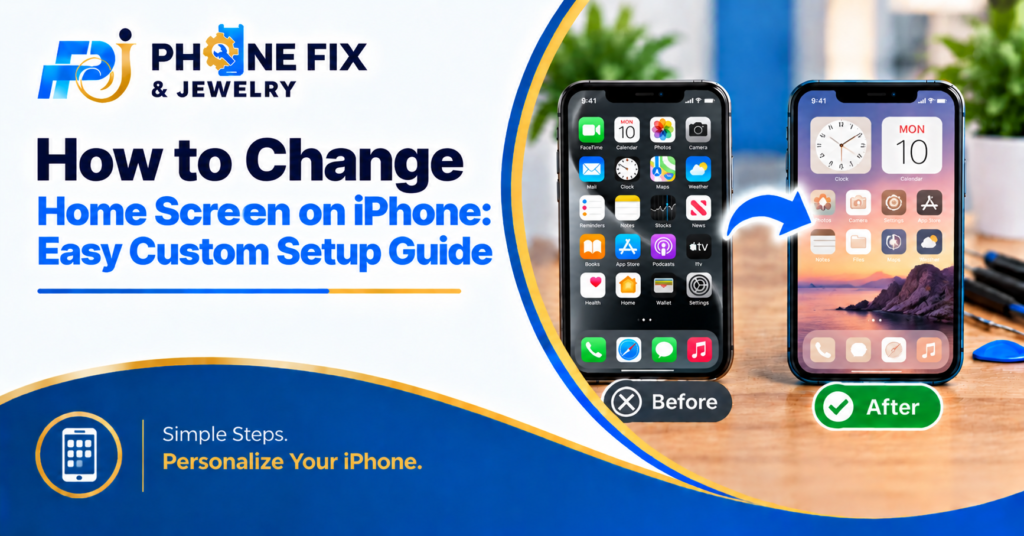
Have you ever felt bored with your iPhone screen? Learning how to change the home screen on an iPhone makes your phone feel fresh. Many users struggle with app placement and wallpaper changes. They also want better colors and cleaner icons.
This guide explains each step in simple English. You’ll learn to move apps and change wallpapers. You’ll also learn about widgets and icon styles. Let’s start with the easiest changes first.
What Can You Change on Your iPhone Home Screen?
Your iPhone offers several ways to change its appearance. Start with the changes you want most.
- App Placement: Move apps anywhere on your Home Screen.
- Wallpaper: Set a new photo or background color.
- App Icons: Change icon size, color, and appearance.
- Widgets: Add useful information to your screen.
- Screen Pages: Organize apps across different Home Screen pages.
Apple supports Home Screen customization through its editing tools. Your available options depend on your iOS version.
How to Change Home Screen on iPhone Step by Step
Learning how to change the home screen on iPhone starts with one simple action. Touch and hold an empty area on your screen. Your apps will begin to shake. This opens the editing mode on your iPhone. From there, you can move apps or adjust icons.
1. Open Your iPhone Home Screen
Unlock your iPhone and find your Home Screen. Choose the page you want to change. Touch and hold an empty space between apps. Wait until the icons begin to move.
Tap Edit at the top of your screen. Choose Customize when the menu appears. You can now adjust your icon appearance.
2. Move Apps To New Positions
Press and hold the app you want to move. Drag it to your preferred screen location. You can place it near the top or bottom. You can also move it to another page.
Drag the app toward the screen’s right edge. Wait for the next page to appear. Then release the app in its new place. Tap the screen background when you’re finished.
3. Change App Icon Size
Your iPhone offers different icon size options. Open the Home Screen editing menu first. Tap Edit and then choose Customize.
Choose the Large icon option for bigger icons. Large icons remove the app names underneath. Select the smaller option to restore labels.
How to Change Your iPhone Wallpaper
A new wallpaper changes your phone’s appearance quickly. You don’t need to move every app first. Choose a photo that matches your personal style.
Use Your Own Photo
Open Settings on your iPhone. Tap Wallpaper and choose Add New Wallpaper. Select Photos and pick your favorite image.
Tap Add after choosing your photo. Select Set as Wallpaper Pair for both screens. Choose Customize Home Screen for separate settings.
Change Only The Home Screen
You might like your current Lock Screen. You can change your Home Screen wallpaper separately.
Open Settings and tap Wallpaper. Find your current wallpaper pair. Select Customize under the Home Screen preview. Choose your photo or a color background. Your Lock Screen stays unchanged.
Use A Blurred Wallpaper
Some photos look busy behind app icons. A blurred background makes icons easier to see. Open the Home Screen customization options. Select Blur if your iPhone shows it.
Check your icons after applying the change. Choose a background with enough contrast. This helps you find apps faster.
How To Change Home Screen Icons And Colors
Modern iPhones offer more icon customization options. You can choose light, dark, or tinted icons. Some versions also offer clear icons. These features appear through the Customize menu.
- Light Icons: Keep a bright appearance for your apps.
- Dark Icons: Choose a darker look across supported icons.
- Clear Icons: Give supported icons a translucent appearance.
- Tinted Icons: Apply a color that matches your wallpaper.
- Large Icons: Increase icon size and remove app labels.
Choose A Dark Icon Style
Open your Home Screen editing menu. Tap Edit and select Customize. Choose Dark from the appearance options.
Your supported icons will use a darker style. Some third-party apps might retain different colors. Check your screen before saving the changes.
Add A Color Tint
Open the Customize menu on your iPhone. Select Tinted from the available options. Adjust the color and saturation sliders.
Pick a color that matches your wallpaper. You can also use the eyedropper tool. It selects a color from your wallpaper image.
Try Larger Icons
Large icons create a cleaner screen appearance. They also remove app labels from view. Open Customize and select the large icon option.
Look at your screen after making the change. Fewer icons might fit on one page. Switch back if you prefer visible app names.
How To Add Widgets To Your Home Screen
Widgets show information without opening an app. You might add weather, battery or calendar widgets. Your available widget sizes depend on each app.
Add A New Widget
Touch and hold an empty Home Screen area. Wait until your icons begin to shake. Tap Edit and choose Add Widget.
Find the app you want to use. Select a widget size from the available options. Tap Add Widget and place it on your screen.
Resize An Existing Widget
Press and hold the widget you want to change. Choose another available widget size. Some apps offer more sizes than others.
Check the screen space before choosing a larger widget. A bigger widget might push apps to another row.
Remove An Unwanted Widget
Touch and hold the widget on your Home Screen. Select Remove Widget from the menu. Confirm the removal when prompted.
Removing a widget doesn’t delete its app. You can add the widget again later.
Organize Your Apps Into Folders
Folders help keep similar apps together. You might group work apps in one folder. Social apps can go into another folder.
Touch and hold an app on your screen. Drag it onto another app. Your iPhone will create a folder.
Tap the folder to open it. You can rename it using the folder name. Move more apps into the same folder as needed.
How To Hide Or Remove Home Screen Pages
You don’t need to keep every page visible. Your iPhone lets you manage Home Screen pages. You can hide pages without deleting the apps.
Touch and hold an empty area of the screen. Tap the page dots near the bottom. Select the pages you want to hide. Tap Done to save the changes.
Hidden pages remain available through your page settings. App removal and page hiding are different actions. Check your settings before removing anything.
Reset Your Home Screen Layout
Sometimes you want to start fresh. Your iPhone includes a reset option for this. It restores the default Home Screen arrangement.
Open Settings and tap General. Choose Transfer or Reset iPhone. Tap Reset and select Reset Home Screen Layout.
This removes custom folders and restores the default layout. Your downloaded apps remain on your iPhone. Use this option only when you want a full reset.
Common Home Screen Problems And Fixes
Some users struggle to find the right settings. Others accidentally change their Lock Screen wallpaper. These simple checks help you fix common problems.
- Customize Missing: Check your iOS version and editing menu.
- Icons Won’t Move: Touch and hold the empty screen area.
- Wallpaper Changes Both Screens: Choose Customize Home Screen separately.
- Widget Won’t Resize: Check whether the app supports other sizes.
- Apps Disappear: Check your App Library and hidden pages.
If your screen doesn’t respond properly, restart your iPhone. Check for available software updates. Persistent issues might require a technician’s help.
How Phone Fix & Jewelry Can Help
Phone Fix & Jewelry provides phone repair services in Alexandria, Virginia. The shop works on smartphones, tablets, and laptops. Their team also repairs game consoles.
If your iPhone has screen or touch problems, their technicians offer repair services. They handle battery issues and charging port faults too. Their services include camera, speaker, and microphone repairs.
The shop offers same-day service at its Van Dorn location. Technicians test device functions before you leave. Written warranties cover parts and labor according to their stated policy.
You can visit 504C S Van Dorn St, Alexandria, VA 22304. Call (703) 328-0514 for service information.
Conclusion
Changing your iPhone Home Screen doesn’t take much time. You can move apps and select new wallpapers. You can also adjust icons and add widgets. Start with one small change you like. If your iPhone has screen problems, seek repair help. Phone Fix & Jewelry offers repair services in Alexandria. Call (703) 328-0514 to ask about your device.
Frequently Asked Questions:
How do I change my Home Screen on iPhone?
Touch and hold an empty screen area. Tap Edit to customize icons or move apps. Use Settings > Wallpaper for background changes.
Can I change my iPhone Home Screen wallpaper only?
Yes. Open Settings and tap Wallpaper. Select Customize Home Screen to change its background separately.
How do I make iPhone icons bigger?
Touch and hold the Home Screen. Tap Edit and Customize. Choose the large icon option.
How do I move apps on my iPhone?
Touch and hold the Home Screen background. Drag an app to another location. Move it to another page by dragging it toward the edge.
Can Phone Fix & Jewelry repair iPhone screens?
Phone Fix & Jewelry offers smartphone repair services. Call (703) 328-0514 to ask about your iPhone issue.