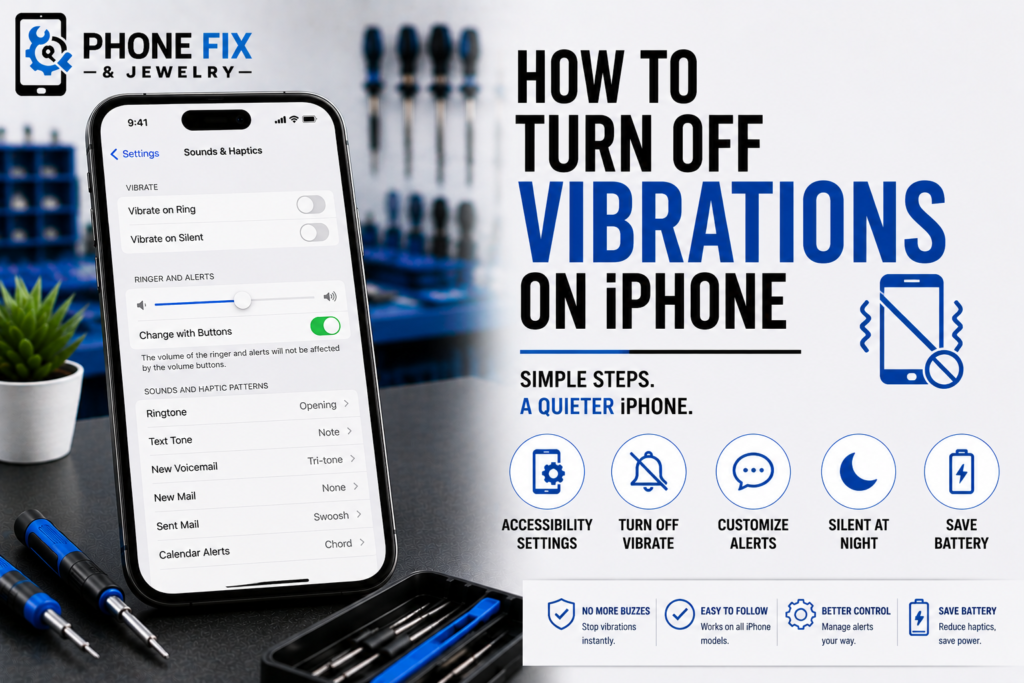
Have you ever felt your phone buzz during quiet meetings? Learning How to Turn Off Vibrations iPhone fixes this problem. Many users try silent mode, but the buzzing still happens. Apple puts device vibration switches in two main setting areas. This quick guide shows the exact buttons to press today. You will learn simple ways to mute calls and texts. Stopping extra haptics helps save your daily battery power too. You can keep your phone truly silent day and night. Follow these direct steps to control your device sounds easily. Your phone will stop making those annoying noises almost instantly.
Understanding Your Device Sound Options
Apple gives you full control over all your phone buzzes. You can change alerts for specific apps and contact messages. You can also turn off all vibrations on iPhone together. Adjusting these settings takes only a few short minutes today. Users wondering how to turn off vibrations on iPhone, start here. We will guide you through every menu step by step. You do not need technical skills to change these settings. It is a simple process for all phone owners.
- Main Toggle: This setting kills every single buzz instantly. It stops all sudden noises fast on your mobile device. You will not feel physical feedback after doing this.
- Sound Menu: This menu controls incoming calls and text alerts. You can change your voicemail sounds right here easily. It helps you manage your daily communication sounds much better.
- Keyboard Haptics: This controls tiny buzzes when you tap keys. It makes your text messaging completely silent in quiet rooms. You will type without disturbing anyone sitting near you.
- Focus Modes: This feature silences buzzes during work hours automatically. It keeps you focused on your important daily office tasks. Your phone stays quiet until your work shift ends.
- App Alerts: This section mutes buzzes for specific apps like Mail. You can silence all your noisy social media notifications quickly. This stops endless buzzing when group chats become active.
Steps to Disable All System Buzzing
Stopping every buzz requires visiting the main accessibility menu area. This acts as a master key for your Apple device. Finding how to turn off vibrations on an iPhone takes just seconds. You will not feel feedback after flipping this switch. It is the fastest way to get a quiet phone. Let us look at the exact steps you must follow.
Use Accessibility Settings Menu
Go to your main Settings app on your home screen. Tap the Accessibility option to open the next menu page. Tap Touch to see the physical response settings available now. Find the Vibration switch and toggle it completely off today. This explains how to turn off vibration issues on iPhone 11. It also covers how to turn off vibrations on an iPhone 12.
Change Sound Profile Options
Open Settings and tap the Sounds and Haptics menu option. Scroll down until you see the System Haptics section box. Turn this switch off to stop background system buzzes entirely. Learning how to turn off vibrations on an iPhone saves battery power. It stops tiny clicks when you move app icons around. This keeps your phone quiet during media play or typing.
Update Specific Application Alerts
Open Settings and tap Sounds and Haptics again right now. Tap Text Tone or Ringtone to change your alert styles. Select Haptics at the top of your mobile screen. Choose None to stop buzzes for that specific alert type. You can repeat this process for any noisy application. Learn how to turn off vibration on iPhone when someone calls.
Custom Ways to Mute Specific Alerts
You can customize buzz settings for individual actions easily. Adjusting these options gives you a quiet screen experience fast. This answers how to turn off vibrations on an iPhone for users. You choose exactly which apps can make your phone move. Managing alerts keeps your mind focused on real life. Let us look at common alert types now.
- Text Alerts: Stop buzzes when you get new messages from friends. This keeps your group chats quiet during your busy day. See how to turn off vibration on iPhone when receiving text messages.
- Incoming Calls: Keep your phone quiet during meetings and personal time. It stops loud desk rattling when telemarketers call your number. Your phone screen will light up without making noise.
- Keyboard Taps: Turn off small clicks while typing your daily messages. This helps you text quietly in a silent library room. It makes writing long emails feel much smoother.
- System Controls: Disable buzzes when toggling switches or unlocking your screen. It creates a smooth feel when using your Apple device. You will notice the difference right away after doing this.
- Alarm Clock: Set silent wake alarms that use light or soft music. This wakes you up peacefully without jumping out of bed. Your mornings will start much better with a quiet alarm.
Managing Settings Across Different Software Versions
Different phone models have slightly different menus for sound controls. Older phones separate the silent switch from the haptics menu. Newer software updates combine these options into one single screen. People often ask how to turn off vibrations iphone often. Finding the right menu depends on your specific software version. You can check your version in the General Settings tab.
Fixing Older Phone Software Menus
Open Settings on older models to start this quick process. Tap the Sounds option on your main home screen menu. Toggle off the setting called Vibrate on Silent mode entirely. This stops ring vibrations on older software versions fast. This solves how to turn off vibrations on iPhone 13 questions. Older devices need this exact step to stop loud noises.
Adjusting Recent Software Updates Easily
Open Settings and tap the Sounds and Haptics menu button. Tap Haptics and choose the Never Play option there. Find how to turn off vibrate on iPhone iOS 17 controls easily. You can use this for newer phone versions easily. Apple changed this menu to make sound control simpler. This includes how to turn off vibrations on iPhone 17 Pro.
Working With New Phone Models
Go to Settings, then tap the Accessibility menu option next. Select Touch to find the main vibration control switch location. Turn off the master Vibration toggle on that screen. This shows how to turn off vibrate on iPhone 14. It shows how to turn off vibrate on iPhone 15. You can turn off vibrate on iPhone 16 here.
Planning Your Daily Sound Schedules
Managing your phone sounds helps you focus on work tasks. You can turn off vibration on iPhone at night easily. Using Sleep Focus keeps your nightstand silent while you rest. Setting custom silent profiles stops unwanted alerts during day hours. We know how to turn off vibrations on an iPhone completely today. A quiet phone helps reduce daily stress levels significantly.
Just reset your phone if settings get stuck sometimes. Many users ask how to turn off vibrations on iPhone 15. You might wonder how to turn off vibrations on iPhone 14. Steps remain the same across all these new devices. It covers how to turn off vibrations on iPhone 17. We know how to turn off vibrations on iPhone 16. You can fix loud buzzing issues in seconds.
How Phone Fix and Jewelry Can Help You
Phone Fix and Jewelry can help you with device problems. We offer reliable repairs for phones, laptops, and tablets today. Our skilled team fixes screen issues and battery failures fast. We repair broken charging ports with complete precision always. We use quality parts for long-lasting repair results everywhere.
Our shop sits on South Van Dorn Street in Alexandria. We are near the Van Dorn Metro station area. You get free parking right out front of our shop. We test every function before you leave our store. Every repair includes a clear written warranty on labor.
Most phone fixes are finished while you wait in store. We open seven days a week for your convenience. Trust our local smartphone repair services anytime you need help. We provide tablet repair options for you right now. Call 703 328 0514 to speak with our repair experts. Ask us how to turn off vibrations on an iPhone during visits. You can visit Apple’s to learn more tech facts online.
Conclusion
Disabling phone buzzes gives you control over your device. You can turn off individual app alerts or kill everything. Using Accessibility settings offers the fastest fix for quiet phones. Simple adjustments save battery life and reduce daily distractions. Mastering how to turn off vibrations on an iPhone gives you peace. Follow these direct steps to set your sound profile. Visit Phone Fix and Jewelry if your phone has issues. Call 703 328 0514 for local tech support today.
FAQs
How do I stop my iPhone from vibrating when on silent?
Go to Settings and tap the Sounds and Haptics menu. Tap Haptics and select the Never Play option right there. This stops all buzzes when your phone is in silent mode.
How do I turn off vibration for notifications?
Go to Settings and tap Sounds and Haptics menu option. Select a specific alert, like your Text Tone setting. Tap Haptics and select None to turn off vibrate notifications on iPhone.
Where is the vibration setting on my iPhone?
Open your Settings app and tap the Accessibility menu button. Tap Touch to view the next settings screen. Learning how to turn off vibrations on iPhone starts right here. You will find the main master switch inside that menu.
How do I change my iPhone from vibrate to sound?
Flip the physical ring switch on your phone side up. Go to Settings and tap Sounds and Haptics next. Slide your volume bar up to hear incoming calls.
Why is my iPhone on Vibrate only?
Your phone’s silent switch might be in the down position. Check Settings under Sounds and Haptics for audio clues. Ensure your ringtone volume bar is turned up high.