
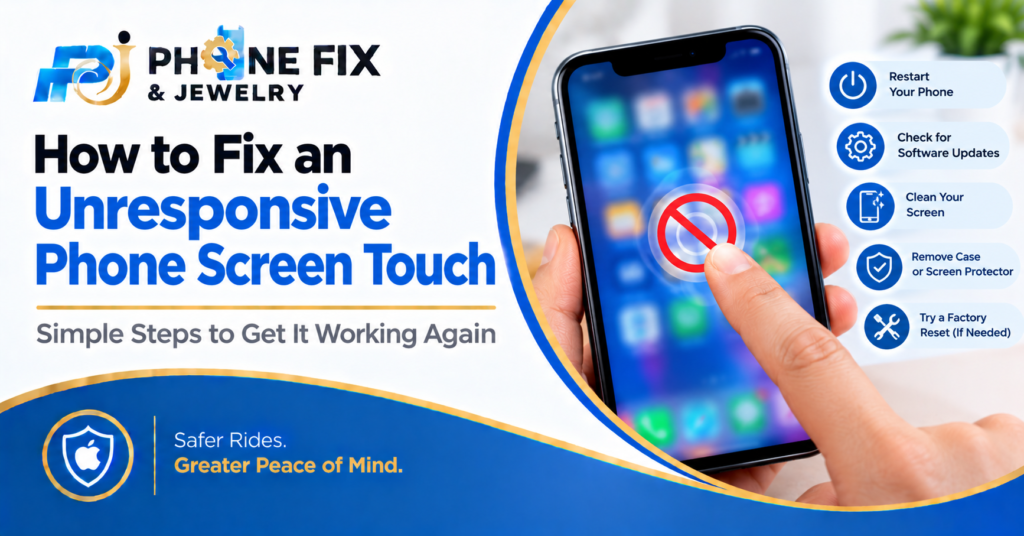
Dealing with an unresponsive phone screen can be frustrating. Many common touch screen issues can be fixed without professional help. Understanding how to fix an unresponsive phone screen touch is essential for any smartphone user.
In this guide, we will explore various touch screen solutions to help you troubleshoot and resolve the problem. Whether it’s a simple restart or a more complex touch screen repair, we’ll cover everything you need to know.
What Should You Check Before You Try Anything Else?
Use this quick prep checklist first:
- Touch screen problems can begin as a result of grease, lotions, dust, and/or water being left on the screen; therefore, you should clean your touch screen by gently wiping it off with a clean, microfiber cloth.
- When the phone gets too warm or cold, the screen will stop responding. Give the phone time to get back to room temperature.
- The best way to fix your phone’s screen is to first remove any thick cases, magnetic mounts, or cracked screen protectors from the device.
- Touch screen problems are usually resolved by restarting the device first and then deleting any problematic applications or resetting some of its configuration.
- Repairing a touch screen may be required when either the glass is cracked, the screen displays lines, or the screen does not function as intended within an isolated damaged region.
- The most common way to begin troubleshooting a non-functioning touch screen on your Android device is by forcing a restart; then check for Safe Mode; and finally remove any new app(s) that you have downloaded.
Follow These Steps in Order to Fix an Unresponsive Phone Screen Touch
Restart the phone properly
A normal restart clears temporary glitches that can make a screen stop reacting. If the touch won’t work at all, use the physical buttons to force restart the device. This is the first thing I’d do for anyone asking how to fix a phone screen with unresponsive touch, because it’s fast, safe, and often enough. Don’t keep pressing random buttons during the restart; just let the phone shut down and come back cleanly.
Clean and dry the screen
Use a dry microfiber cloth and wipe the glass from edge to edge. If the phone was near water, don’t charge it, don’t heat it with a dryer,r and don’t put pressure on the screen. Moisture can confuse touch input,ut and heat can damage seals or internal parts. After cleaning, wash and dry your hands too, because wet fingers can make a good screen feel broken.
Remove the case and screen protector
A tight case can press against the edges of the display, especially after a drop. A cracked or lifting protector can also create dead zones, ghost taps, apps, or delayed swipes. Peel the protector off only if it’s already damaged or clearly interfering. Then test the screen on the lock screen, keyboard,oard and home screen so you’re not judging the whole phone by one frozen app.
Charge the phone and test it unplugged
Low power can make a phone lag or freeze, and a faulty charger can cause strange touch behavior while plugged in. A lot of guides on how to fix phone screen unresponsive touch skip this, but I wouldn’t. Charge the phone with a reliable cable for at least 20 minutes, then unplug it and test the screen again. If the touch works fine unplugged but acts weird while charging, the cable, power brick,k or outlet may be the problem.
Close the stuck app or boot into safe mode
If touch fails only in one app, that app may be frozen rather than the phone itself. Use buttons, gestures that still work or voice controls if available to close it. On Android, safe mode can help you test whether a downloaded app is causing the issue. If touch improves in safe mode, remove recent apps one by one, starting with screen dimmers, launchers, cleaners, keyboard apps, and anything installed right before the problem started.
Update software if you can still navigate
System updates can fix display bugs, app conflicts, and performance problems. At this point, to fix a phone with an unresponsive touch screen, look for anything that changed recently, including a failed update, a new app,p or storage that’s almost full. Free up space if the phone is crawling, then install available updates. Back up important photos, contacts,ts and files before any larger fix, because a worsening screen can become impossible to use without warning.
Reset settings before erasing the phone
Resetting all settings can clear odd behavior without deleting your personal f,iles, though Wi-Fi, Bluetooth, display and accessibility preferences may need to be set again. A full factory reset should be the last software step, not the first. Only do it after backing up your data and confirming the issue isn’t clearly physical. If the screen has cracks, black spots, green lines,ines or touch dead zones after a drop, a reset probably won’t solve it.
Use Android-Specific Checks When the Screen Partly Works
If you need to know how to fix an unresponsive touch on an Android device, start with the parts you can still control. Try safe mode, remove recent apps, clear the cache for the problem app, and check accessibility settings that may affect gestures. If the notification shade works but the keyboard doesn’t, the issue may be app-specific. If the bottom or top strip never responds, that’s more likely a hardware fault.
For Android owners, how to fix a phone screen with unresponsive touch also depends on the model. Some phones have glove mode, touch sensitivity settings, accidental touch protection, or display edge controls. Turn those settings off and on again, then test slowly with one finger. Don’t install random “screen repair” apps that promise miracles. In my opinion, they waste time and can add more problems.
Stop if You See Signs of Physical Damage
No honest guide on how to fix a phone screen with unresponsive touch should tell you to keep troubleshooting forever. If the phone was dropped, bent, exposed to liquid, or repaired poorly before, the touch layer or connector may be damaged. Watch for flickering, colored lines, black patches, glass lifting, swelling near the frame,e or touch that works only when you press hard. Those signs call for inspection, not more tapping.
Back up your data as soon as you get any response from the screen. If touch barely works, connect a mouse with the right adapter, use voice commands,ds or rely on cloud backups if they’re already enabled. The main goal is simple: save your information before the display fails completely.
How Phone Fix & Jewelry Can Help
Phone Fix and Jewelry provides screen assessment, screen replacement, charging port repair, battery replacement, device cleaning, etc., for many of the most frequent types of phone repairs. A good thing about a focus-oriented repair business is that you can speak with someone, describe the situation, and receive an applicable response, rather than going through another reset.
The technicians at Phone Fix and Jewelry are able to examine the display, digitizer, connectors, pressure within the case, and software to determine if there is a simple fix required or a hardware issue needs attention. It is important to know if there is a hardware issue because it will save you time, protect your information, and help prevent you from purchasing the incorrect repair.
In addition to providing support prior to and post-repair, Phone Fix and Jewelry will assist you in knowing what has changed as well as how to maintain protection of your phone. If your screen continues to be unresponsive, please use the contact form.
Conclusion
Many times, people get frustrated when their phones don’t respond to their touch. But there are some easy things you can do to try and fix the problem. This guide will help you find solutions to the most common touch screen issues, including cleaning your screen, turning off/on your phone, and updating your operating system. If you follow these suggestions, you should be able to resolve most of your touch screen issues before calling a professional. It is important to know what types of problems indicate that there may be something wrong with the hardware on your phone. Examples of hardware problems would include having a cracked screen or experiencing problems with your phone responding consistently to your touch.
Frequently Asked Questions:
What is the fastest way to fix an unresponsive phone screen?
Restart the phone, clean and dry the screen, remove the case and protector, then test it while unplugged. That’s the fastest safe path when learning how to fix an unresponsive phone screen touch.
Why is my phone screen touching by itself?
Ghost touching is usually caused by moisture, a damaged screen protector, charger interference, software glitches, or display damage. Unplug the charger, clean the glass, restart the phone, and remove the protector if needed.
Can a cracked screen still be fixed without replacing it?
Sometimes minor touch problems come from a protector, but a cracked display with dead zones, lines,s or black spots usually needs professional repair or screen replacement.
Will a factory reset fix touch problems?
A factory reset can fix software-related touch problems, but it won’t repair cracked glass, liquid damage, loose connectors,rs or a failing digitizer. Back up your data first.
When should I get professional help?
Get help if the phone was dropped, got wet, shows lines or dark spots, swells near the frame,ame or still doesn’t respond after cleaning, restarting, and testing without accessories.