
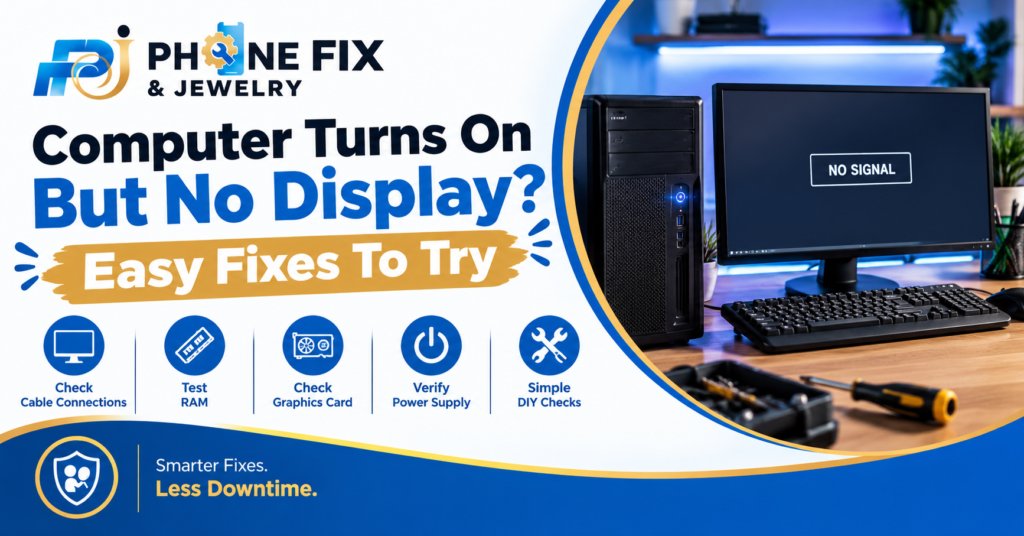
Have you ever turned on your computer without seeing anything? A computer turns on but no display can feel scary. The fans spin, and lights still glow. Yet your monitor stays completely black. Sometimes the problem comes from loose cables. Other times the graphics card or monitor causes trouble.
A faulty RAM stick might also stop display output. Simple checks often help find the cause first. You should check cables and connections before opening anything. Restarting the computer might also restore the display. This guide covers safe checks before you consider professional computer repair.
Why A Computer Turns On Without Display
Your computer needs several parts to show pictures. A loose cable might cause the problem. Wrong monitor input settings might also cause trouble. Hardware faults need more careful testing.
- Monitor Input: Check the selected screen input first.
- Video Cable: Check both ends for loose connections.
- Power Signs: Listen for fans or startup sounds.
- RAM Check: Loose memory often stops startup checks.
- Graphics Card: A faulty GPU might stop video output.
These checks help narrow down the fault quickly. Do them in this order before opening anything. A simple cable fault needs no deep repair.
Check The Monitor And Cable First
Start outside the computer before checking inside. This saves time and avoids needless hardware work. A screen with no signal needs basic checks first.
Check The Monitor Power
Look at the monitor power light first. No light means the screen lacks power. Try another wall outlet if needed. Check the monitor power cable too. Then turn the monitor on again.
Select The Correct Input
Many monitors support several video inputs. Your computer might use HDMI or DisplayPort. The monitor might select another port instead. Open its input menu and choose your port. This simple check often fixes blank screens.
Test Another Cable Or Screen
A damaged video cable might stop the picture. Try another compatible cable if you have one. You might also test another working monitor. This helps separate screen faults from computer faults. If another screen works, inspect your monitor.
Check The Computer Startup Signs
Sometimes the screen works fine. The computer itself fails before showing video. Watch its lights and listen for startup sounds. These signs give useful clues about the fault.
- Fans Running: Spinning fans show the system receives power.
- Beep Codes: Beeps might point toward hardware faults.
- Keyboard Lights: Lights show some startup activity.
- No Logo: No logo might signal startup trouble.
- Repeated Restarts: Restarts might point toward hardware trouble.
Do not ignore strange startup sounds. Write down the number of beeps. Also note any flashing lights. These details help during professional testing.
Remove Extra USB Devices
Turn the computer off first. Remove drives, printers and other USB devices. Leave only the basic keyboard and mouse. Then start the computer again. A faulty device might block startup.
Check The Graphics Port
Desktop computers often have several video ports. Some ports belong to the motherboard. Others belong to the graphics card. Use the graphics card ports when installed. The wrong port might show no picture.
Try A Hard Reset
Turn the computer off completely first. Remove its power cable from the outlet. Hold the power button for fifteen seconds. Reconnect power and start the computer. This clears some temporary power states.
Check RAM And Internal Hardware Carefully
A computer turns o,n but no display may involve RAM. Memory faults often stop normal startup checks. Graphics hardware might also cause blank screens. Internal checks need extra care and patience.
- RAM Seating: Loose memory might stop the startup process.
- RAM Fault: Bad memory might prevent video output.
- GPU Power: Graphics cards need proper power connections.
- Motherboard: Board faults might block hardware startup.
- Power Supply: Weak power might prevent full startup.
Desktop users with repair experience might inspect RAM. Turn power off before touching internal parts. Never work inside a powered computer. Laptop owners should avoid opening sealed models. Professional testing remains safer for unknown faults.
How RAM Can Cause A Blank Screen
RAM helps your computer start its main systems. A loose module might stop startup checks. Fans might still spin during this problem. The screen can remain completely black. Beep codes might also appear on some systems.
If you know computer hardware, check seating carefully. Do not force any memory module. Different computers use different memory types. Wrong parts can cause further hardware problems.
How Graphics Problems Affect Your Screen
Your graphics hardware sends pictures to the monitor. A graphics card fault might stop video output. Heat can also affect graphics hardware performance. Dust buildup might worsen cooling problems.
Check the cable connected to the graphics card. Check its power plugs when applicable. Do not remove the card without experience. A repair shop can test it safely.
When A Black Screen Needs Professional Testing
A computer turns on but no display needs testing sometimes. This happens after basic checks fail. Internal faults need proper tools and experience. Guessing parts often wastes money.
A technician checks the monitor first. Then they test cables and video ports. Next comes hardware testing inside the computer. They might test RAM and graphics hardware. They also check startup signals and power.
What To Do Before Taking Your Computer For Repair
Write down what happens after pressing power. Note whether fans spin or lights flash. Record any beep pattern you hear. Tell the technician when the issue started. Mention recent drops, power cuts,ts or upgrades.
Do not keep restarting a damaged computer. Repeated attempts might worsen some hardware faults. Also avoid random part replacements without testing. A proper diagnosis saves money and time.
If Windows appears before the screen goes black, mention it. That clue changes the testing path. A black screen after Windows loads differs. It might involve display settings or drivers.
Why A Proper Diagnosis Matters
A blank screen does not always mean replacement. The monitor might have the wrong input. The cable might have a damaged connection. RAM might need checking. Graphics hardware might need testing. A technician should test before replacing parts.
This matters more with expensive computers. Random parts can cost hundreds of dollars. A simple test might find a smaller fault. Good repair work starts with diagnosis. It should also explain the repair before work.
Computer Turns On But No Display: Quick Checklist
Use this checklist before booking a repair.
- Check the monitor power light.
- Check the selected monitor input.
- Reconnect both ends of the video cable.
- Try another compatible video cable.
- Try another working monitor if available.
- Remove extra USB devices.
- Check startup beeps or flashing lights.
- Check the correct graphics port.
- Perform a safe hard reset.
- Seek repair if basic checks fail.
Do not open the computer without experience. Internal parts need careful handling. A wrong move might damage small connectors. Professional testing makes sense after basic checks.
Common Signs Of A Bigger Hardware Fault
A computer turns on but no display may show warning signs. The screen might remain black every time. Fans might run at full speed. The computer might restart again and again. Beep codes might appear during startup. The monitor might show No Signal.
These signs point toward deeper testing. RAM, GPU, motherboard, or power faults need checking. A repair technician can test each part. This prevents unnecessary part replacement.
Should You Repair Or Replace The Computer?
Repair often makes sense for newer computers. Screen or graphics faults might need one part. RAM problems also cost less in many cases. Older systems need a closer cost check.
Compare the repair price with replacement cost. Also consider your files and programs. A working repair might save setup time. A technician should explain both choices clearly.
Do not replace a computer based on one symptom. A black screen alone proves very little. Testing gives you a better answer.
How Phone Fix & Jewelry Can Help
Phone Fix & Jewelry repairs laptops in Alexandria. The shop handles MacBook, Dell, HP and Lenovo. Gaming laptops also receive repair service there. Common jobs include screens and batteries. They also repair keyboards and charging faults. Liquid damage receives careful inspection too.
The shop offers free laptop diagnostics. Most laptop checks take fifteen to thirty minutes. You receive a written quote before repair work. This gives you the repair price upfront. Some laptop repairs finish within the same day. Other jobs need extra time for parts.
Phone Fix & Jewelry also provides written warranties. The warranty covers parts and labor. The shop sits at 504C S Van Dorn St. The address is in Alexandria, Virginia 22304. Call (703) 328- 0514 for repair help. The store stays open seven days weekly.
Conclusion
A black screen does not always mean disaster. Start with the monitor and cable checks. Then check startup signs and video ports. Avoid opening hardware without proper experience. Professional testing helps find the real fault. Phone Fix & Jewelry offers laptop repair in Alexandria. Call (703) 328 0514 for repair support.
FAQs
Why does my computer turn on but show nothing?
A computer turns on but no display often has cable issues. Wrong monitor input, RAM faults, or graphics problems also occur. Professional testing helps confirm the exact cause.
Can a bad HDMI cable cause no display?
Yes, a damaged HDMI cable can block video. Check both connections first. Try another compatible cable if available.
Can RAM cause a black screen?
Yes, loose or faulty RAM can stop startup. Fans might still spin during this problem. Beep codes might also appear on some computers.
Should I open my computer to fix display problems?
Avoid opening it without hardware experience. Internal parts need careful handling. A repair shop can inspect the system safely.
Where can I repair my computer in Alexandria?
Phone Fix & Jewelry repairs MacBook, Dell, HP, and Lenovo laptops. The shop sits at 504C S Van Dorn St. Call (703) 328- 0514 before visiting.